

Mobile Trading on Quotex — Complete Guide
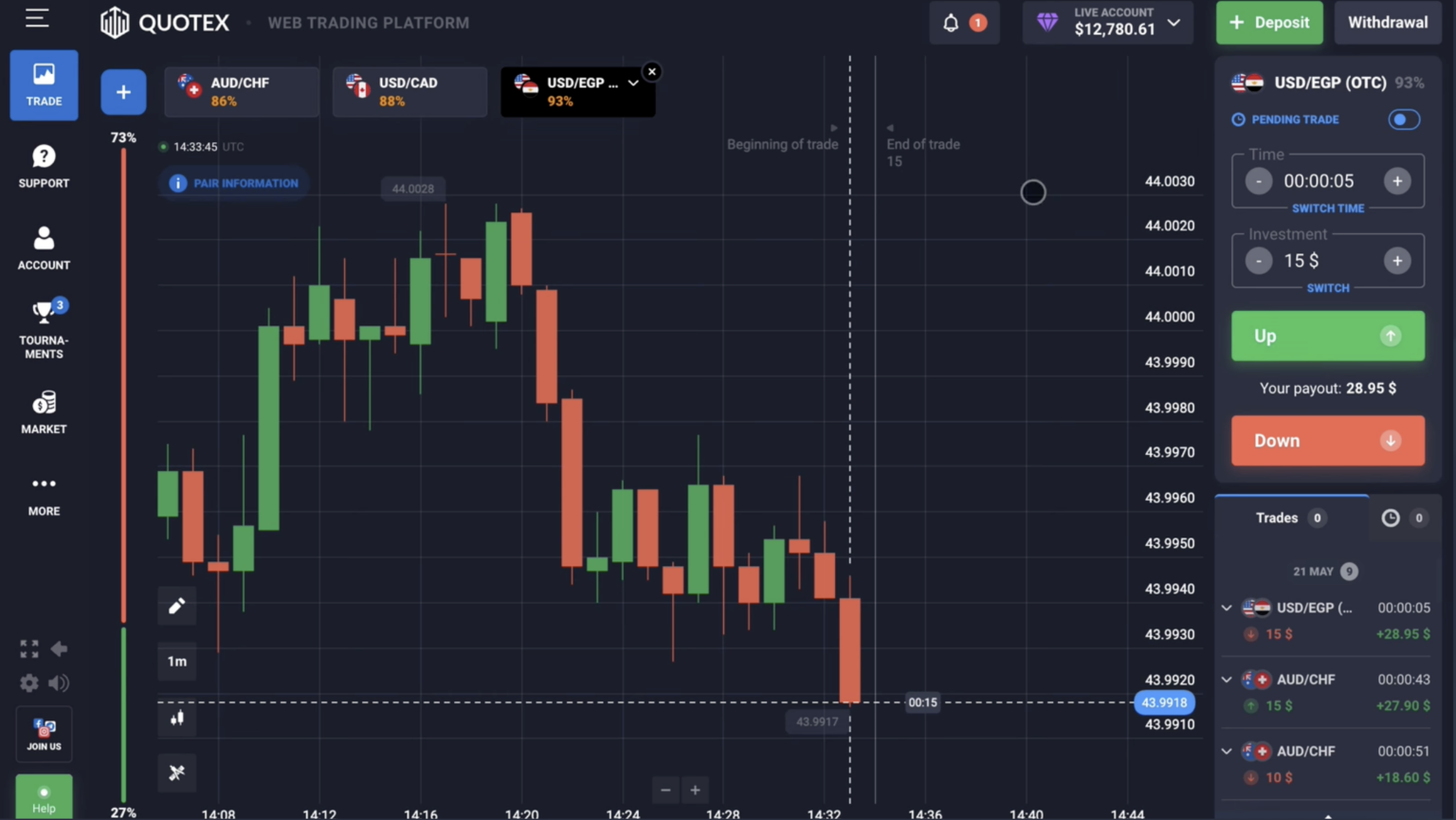
Quotex Mobile App — Download and Install
- Android — Google Play Store (search 'Quotex' or visit quotex.vg/download-android/). Free, 28-35 MB installation.
- iOS — App Store (search 'Quotex' or visit quotex.vg/download-ios/). Free, 35-40 MB.
- Mobile browser — open quotex.vg in Safari/Chrome on phone; full functionality without app installation. Useful for users in countries where store availability varies.
- Step 1 — Download from official store (avoid third-party APK sources to prevent malware)
- Step 2 — Open app; tap 'Login' if existing account, 'Sign Up' if new
- Step 3 — Enable biometric login (Face ID, fingerprint) for fast access
- Step 4 — Configure push notifications (Settings → Notifications)
Mobile App Features
| Feature | Mobile App | Desktop |
|---|---|---|
| Trade placement | Yes (tap up/down arrow) | Yes (click) |
| Indicator library (100+) | Yes | Yes |
| Drawing tools (trend lines, Fib) | Yes (long-press) | Yes |
| Chart timeframes (5s to 1d) | Yes | Yes |
| Asset switching | Yes (search bar) | Yes |
| Demo/Live toggle | Yes | Yes |
| Deposit and withdrawal | Yes | Yes |
| Trade history export | View on device, CSV via desktop | Yes, full CSV export |
| Biometric login | Yes (Face ID, fingerprint) | No |
| Push notifications | Yes native | Browser permissions only |
| Multi-monitor view | No | Yes |
| Keyboard shortcuts | Limited | Full |
Biometric Login Setup
- iOS — App opens → Login → enter password once → enable Face ID/Touch ID when prompted
- Android — App opens → Login → enter password → settings allow fingerprint or face unlock
- Subsequent logins use biometrics; password only required if biometric fails
- Security: biometric is stored on device only; never transmitted to Quotex servers
- Recommended: enable biometric AND 2FA for maximum security
Push Notifications
Mobile notifications can alert you to important events:
- Trade closures — when your binary options expire (win or loss)
- Deposit confirmations — when funds arrive
- Withdrawal status updates — KYC approval, withdrawal processed
- Account security alerts — new logins from unrecognized devices
- Promotional notifications — new bonuses, tournaments (optional, can disable)
- Configure in: app Settings → Notifications → customize per category
Mobile-Specific Tips
- Tip 1 — Use horizontal (landscape) mode for chart analysis; vertical for quick trades
- Tip 2 — Pinch-to-zoom on chart for closer view of specific candles
- Tip 3 — Save chart layouts to switch between strategies with one tap
- Tip 4 — Use 'Recent Assets' menu for fast switching between your top traded pairs
- Tip 5 — Set wallpaper widget (Android) for quick balance check without opening app
- Tip 6 — Use airplane mode for forced trading break (yes, this is a real discipline tool)
Battery and Data Optimization
- Battery — App uses moderate battery during active trading (chart rendering). Background usage is minimal
- Data — Active chart streaming uses approximately 1-3 MB per hour of trading. 1 hour daily for a month: 30-90 MB
- Wi-Fi recommended for trading; cellular works fine but uses data plan
- Avoid heavy battery savers during trading — may slow chart updates or cause connection drops
- Tip — Trade with phone plugged in for long sessions to prevent low-battery shutdown
When Mobile Beats Desktop
- While commuting (10-20 min trading windows)
- Quick deposit/withdrawal on the go
- Receiving push notifications immediately (vs checking browser)
- Trading from anywhere (vacation, travel)
- Lower commitment situations — don't need full focus environment
When Desktop Beats Mobile
- Long focused trading sessions (2+ hours)
- Multiple indicator analysis (more screen space)
- Multi-asset monitoring (open multiple browser tabs)
- Strategy development and backtesting
- Detailed journaling alongside trading
- Better keyboard shortcuts for fast execution
Mobile FAQ
Is the mobile app safe?
Yes — the official Quotex app from Google Play Store / App Store is safe. Avoid third-party APK sources which may contain malware. Enable biometric + 2FA for added security.
Can I use mobile and desktop simultaneously?
Yes — log into both at the same time. Useful for monitoring different assets or strategies in parallel. All trades and balance updates sync in real-time across devices.
What if the app crashes mid-trade?
Open trades continue server-side even if app crashes. When you reopen, the trade resumes from current state. If you experience persistent crashes, force-close and reopen the app; if persistent, reinstall from store. Contact support if a specific trade was affected.
Are mobile payouts the same as desktop?
Yes — payouts are server-determined by asset and time, independent of device. Mobile and desktop receive identical payout percentages at any given moment.
Can I trade Quick Deal (5s-60s) on mobile?
Technically yes, but Quick Deal requires fast reaction time that mobile finger-tap is slower than desktop click. Most professional Quick Deal traders use desktop with keyboard shortcuts. Beginners should avoid Quick Deal entirely regardless of device.
Does mobile chart show same indicators as desktop?
Same 100+ indicators available. Mobile screen displays 2-3 indicators comfortably; adding 4+ becomes cluttered. Desktop's larger screen allows more visible indicators simultaneously.
Quotex
Disclosure: Sign-up links on this page may earn us a commission at no extra cost to you. This does not affect the editorial accuracy of our content — payouts, methods, and platform features are reported as observed.