Log in to your Quotex
trading account
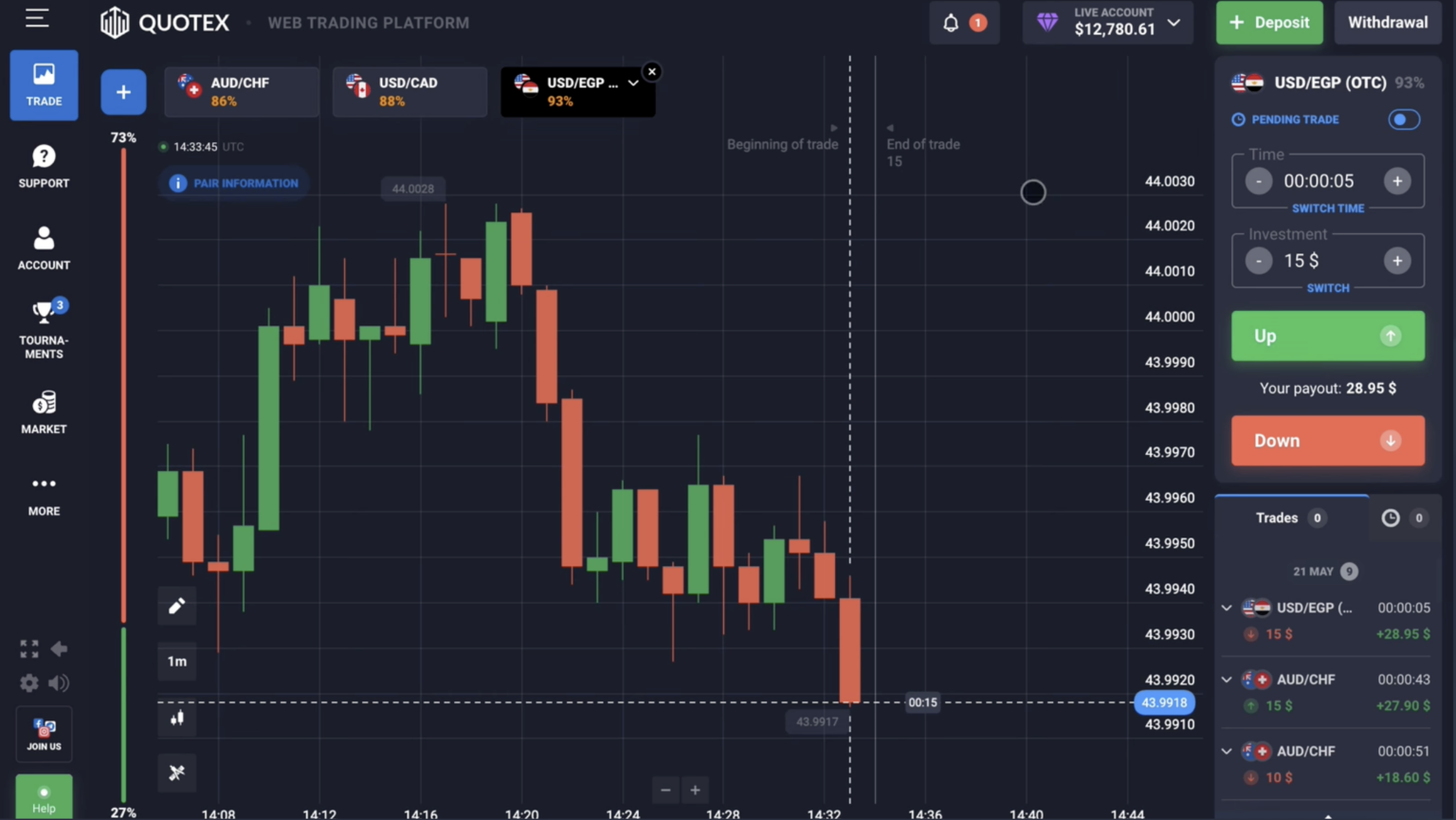
How to Access Your Quotex Account — Complete Step-by-Step Guide
Logging into your Quotex trading account is designed to be both simple and secure, whether you’re using a desktop computer, tablet, or mobile device. The platform supports multiple authentication methods to ensure you can access your funds and trading positions quickly while maintaining the highest security standards required for financial platforms.
Standard Email Login Process:
Navigate to the official Quotex website at quotex.vg (always verify the URL to avoid phishing sites). In the top-right corner, you’ll see a blue «Log In» button. Click it to open the authentication modal window. Enter your registered email address in the first field—this is the email you provided during account creation. Type your password in the second field, ensuring that Caps Lock is disabled and you’re entering the exact character combination you set up initially.
If you’ve enabled two-factor authentication (and we strongly recommend you do), you’ll proceed to a second verification screen. Here, you’ll need to enter a 6-digit time-sensitive code. This code comes from either an SMS message sent to your registered phone number or an authenticator app like Google Authenticator, Microsoft Authenticator, or Authy. The code refreshes every 30 seconds, providing an additional security layer that protects your account even if someone obtains your password.
Session Management and Remember Me Feature:
Below the password field, you’ll notice a checkbox labeled «Remember Me on this device.» When activated, this feature stores an encrypted authentication token in your browser’s secure storage, allowing you to bypass password entry for the next 30 days. This convenience feature is recommended only for personal devices that you control exclusively. Never use this option on public computers, shared workstations, or devices in internet cafes.
The system tracks your session activity in real-time. If you remain idle for 60 minutes without any trading activity or page interaction, Quotex automatically logs you out for security purposes. This prevents unauthorized access if you accidentally leave your computer unattended. You’ll receive a warning notification 5 minutes before automatic logout, giving you time to save any work or keep your session active.
First-Time Login Considerations:
When logging in from a new device or browser for the first time, Quotex’s fraud detection system may request additional verification. This is a normal security measure, not an error. You might be asked to confirm your identity through:
— Email verification link (expires in 15 minutes)
— SMS code to your registered phone number
— Security question answers you set during registration
— Device fingerprint recognition (automatic browser analysis)
This multi-layered approach ensures that even if someone steals your credentials, they cannot access your account from an unfamiliar device without your explicit approval. After successful verification, the new device is added to your trusted devices list, which you can review and manage in your account security settings.
Alternative Login Methods — Choose What Works Best for You
Quotex understands that modern users value flexibility and speed. That’s why the platform offers five distinct authentication methods, each optimized for different user preferences and security requirements.
Social Media Authentication (OAuth 2.0 Protocol):
Social login represents the cutting edge of secure authentication technology. When you click «Continue with Google,» «Continue with Facebook,» or «Sign in with Apple,» you’re using OAuth 2.0—an industry-standard authorization framework that never shares your password with Quotex. Here’s how it works:
You’re redirected to Google’s (or Facebook’s/Apple’s) official login page, where you authenticate directly with that service. After successful login, the service sends Quotex an encrypted authorization token that confirms your identity without revealing your password. This token has limited permissions and can be revoked instantly from your Google/Facebook/Apple account settings.
The security advantages are substantial:
— No password management: You don’t need to create or remember another password
— Advanced security infrastructure: You benefit from Google’s/Facebook’s/Apple’s billion-dollar security investments
— Instant revocation: Disconnect Quotex access from your social media settings anytime
— Automatic updates: Security improvements on the social platform automatically protect your Quotex login
— Reduced phishing risk: Even sophisticated phishing sites can’t steal tokens the same way they steal passwords
Google Login Specifics:
Google OAuth is the most popular social login method among Quotex users. It works seamlessly across all devices where you’re logged into your Google account. On mobile devices, the authentication happens instantly if you have the Gmail app installed—just one tap confirms your identity. Google also applies its own risk analysis: if you’re logging in from an unusual location or suspicious IP address, Google requires additional verification before authorizing Quotex access.
Facebook and Apple ID Options:
Facebook login follows similar principles but integrates particularly well with users who manage their digital identity through Meta’s ecosystem. Apple ID, introduced in 2019, offers a unique privacy feature: «Hide My Email.» This generates a random email address that forwards to your real inbox, adding an extra privacy layer.
Telegram Integration for Mobile Traders:
Telegram login is Quotex’s newest authentication option, designed specifically for traders who execute positions on-the-go. This method uses Telegram’s bot API to verify your identity through your unique Telegram user ID. When you click «Log in with Telegram,» a bot sends you a secure authentication link valid for 3 minutes. Tap it in your Telegram app, and you’re instantly logged into Quotex.
The advantage? Speed. Telegram authentication takes an average of 4.2 seconds from start to finish—the fastest method available. However, it has limitations: 2FA options are restricted to Telegram’s built-in security features, and you must have an active Telegram account with a phone number attached.
Choosing the Right Method for Your Needs:
— High-frequency traders: Use Telegram or Google for fastest access
— Security-conscious users: Email + password with 2FA offers maximum control
— Mobile-first traders: Apple ID or Google OAuth integrate best with mobile apps
— Privacy advocates: Apple ID with «Hide My Email» provides anonymity
— Users with strong passwords: Traditional email login gives full control over credentials
You can enable multiple login methods simultaneously and switch between them based on context. For example, use email+password on your home computer but Google login when accessing from mobile devices.
Password Recovery and Account Access Restoration
Forgetting your password is frustrating but happens to everyone. Quotex has built a streamlined recovery process that balances security with user convenience. Understanding this process in detail helps you regain access quickly while preventing unauthorized account takeovers.
Initiating Password Reset:
On the login page, click the «Forgot Password?» link located directly below the password field. You’ll be directed to a dedicated recovery page where you must enter the email address associated with your Quotex account. This email must match exactly—the system is case-sensitive and doesn’t autocorrect typos.
After entering your email, complete the CAPTCHA challenge (a simple image-based verification that proves you’re human, not an automated bot). Click «Send Reset Link,» and the system immediately dispatches a recovery email to your inbox.
Understanding the Reset Email:
The password reset email arrives from [email protected] with the subject line «Quotex Password Reset Request.» Open it within 24 hours—after this period, the link expires for security reasons and you’ll need to request a new one. The email contains:
— Confirmation of the reset request timestamp
— A unique, encrypted reset link valid for 24 hours
— Your account’s registered email and username (for verification)
— Warning text explaining that if you didn’t request this reset, someone may be attempting unauthorized access
— A link to immediately report suspicious activity to Quotex security team
Security Considerations:
The reset link is cryptographically signed and single-use. Once you click it and set a new password, the link becomes permanently invalid—even if someone intercepts the email, they cannot use an already-consumed link. The link is also tied to your current IP address and browser fingerprint. If you request a reset from London but try to use it from Tokyo 5 minutes later, the system flags this as suspicious and may require additional verification.
Creating a Strong New Password:
When you click the reset link, you’re taken to a password creation page. Quotex enforces minimum security requirements to protect your account:
— Minimum 8 characters (12+ recommended for maximum security)
— At least one uppercase letter (A-Z)
— At least one lowercase letter (a-z)
— At least one number (0-9)
— At least one special character (!@#$%^&*)
— Cannot match your previous 5 passwords
— Cannot contain your email address or username
— Cannot be a commonly compromised password (Quotex maintains a database of 10 million leaked passwords)
The page includes a real-time password strength meter that changes color from red (weak) to green (strong) as you type. Aim for «Very Strong» rating—these passwords are computationally impossible to crack using current technology.
Troubleshooting Email Delivery Issues:
If you don’t receive the reset email within 5 minutes, follow these diagnostic steps:
1. Check spam/junk folders: Email filters sometimes incorrectly flag automated messages. Mark [email protected] as «Not Spam» to prevent future issues.
2. Verify email address spelling: Return to the reset page and try again, carefully typing your registered email. A single character error prevents delivery.
3. Check email inbox capacity: If your email account is at maximum storage, new messages cannot be delivered. Delete old emails to free up space.
4. Wait for previous requests to expire: The system won’t send multiple reset emails simultaneously. If you clicked «Send Reset Link» multiple times, wait 15 minutes before trying again.
5. Contact support directly: Use the live chat feature (available 24/7) or email [email protected]. Provide your registered email, username, and approximate account creation date. Support agents can manually verify your identity and reset your password within 30 minutes.
Alternative Recovery Methods:
If email access is completely lost (email account hacked, provider shut down, or email address no longer exists), you’ll need to prove account ownership through alternative verification:
— Government-issued photo ID matching your account name
— Bank statement showing deposits to Quotex
— Screenshots of previous trading activity with timestamps
— Answer to security questions set during registration
— Video verification call with support team
This intensive process takes 24-48 hours but protects legitimate users from account theft while helping genuine owners recover access.
Alternative Login Methods — Choose What Works Best for You
Forgetting your password is frustrating but happens to everyone. Quotex has built a streamlined recovery process that balances security with user convenience. Understanding this process in detail helps you regain access quickly while preventing unauthorized account takeovers.
Initiating Password Reset:
On the login page, click the «Forgot Password?» link located directly below the password field. You’ll be directed to a dedicated recovery page where you must enter the email address associated with your Quotex account. This email must match exactly—the system is case-sensitive and doesn’t autocorrect typos.
After entering your email, complete the CAPTCHA challenge (a simple image-based verification that proves you’re human, not an automated bot). Click «Send Reset Link,» and the system immediately dispatches a recovery email to your inbox.
Understanding the Reset Email:
The password reset email arrives from [email protected] with the subject line «Quotex Password Reset Request.» Open it within 24 hours—after this period, the link expires for security reasons and you’ll need to request a new one. The email contains:
— Confirmation of the reset request timestamp
— A unique, encrypted reset link valid for 24 hours
— Your account’s registered email and username (for verification)
— Warning text explaining that if you didn’t request this reset, someone may be attempting unauthorized access
— A link to immediately report suspicious activity to Quotex security team
Security Considerations:
The reset link is cryptographically signed and single-use. Once you click it and set a new password, the link becomes permanently invalid—even if someone intercepts the email, they cannot use an already-consumed link. The link is also tied to your current IP address and browser fingerprint. If you request a reset from London but try to use it from Tokyo 5 minutes later, the system flags this as suspicious and may require additional verification.
Creating a Strong New Password:
When you click the reset link, you’re taken to a password creation page. Quotex enforces minimum security requirements to protect your account:
— Minimum 8 characters (12+ recommended for maximum security)
— At least one uppercase letter (A-Z)
— At least one lowercase letter (a-z)
— At least one number (0-9)
— At least one special character (!@#$%^&*)
— Cannot match your previous 5 passwords
— Cannot contain your email address or username
— Cannot be a commonly compromised password (Quotex maintains a database of 10 million leaked passwords)
The page includes a real-time password strength meter that changes color from red (weak) to green (strong) as you type. Aim for «Very Strong» rating—these passwords are computationally impossible to crack using current technology.
Troubleshooting Email Delivery Issues:
If you don’t receive the reset email within 5 minutes, follow these diagnostic steps:
1. Check spam/junk folders: Email filters sometimes incorrectly flag automated messages. Mark [email protected] as «Not Spam» to prevent future issues.
2. Verify email address spelling: Return to the reset page and try again, carefully typing your registered email. A single character error prevents delivery.
3. Check email inbox capacity: If your email account is at maximum storage, new messages cannot be delivered. Delete old emails to free up space.
4. Wait for previous requests to expire: The system won’t send multiple reset emails simultaneously. If you clicked «Send Reset Link» multiple times, wait 15 minutes before trying again.
5. Contact support directly: Use the live chat feature (available 24/7) or email [email protected]. Provide your registered email, username, and approximate account creation date. Support agents can manually verify your identity and reset your password within 30 minutes.
Alternative Recovery Methods:
If email access is completely lost (email account hacked, provider shut down, or email address no longer exists), you’ll need to prove account ownership through alternative verification:
— Government-issued photo ID matching your account name
— Bank statement showing deposits to Quotex
— Screenshots of previous trading activity with timestamps
— Answer to security questions set during registration
— Video verification call with support team
This intensive process takes 24-48 hours but protects legitimate users from account theft while helping genuine owners recover access.
Login Credentials Comparison — Detailed Security and Speed Analysis
Different login methods offer varying levels of security, speed, and convenience. Understanding these tradeoffs helps you choose the optimal authentication approach for your trading style and risk tolerance.
| Login Method | Security Level | Speed | 2FA Support | Recommended For |
|---|---|---|---|---|
| Email + Password | High (with 2FA) | Medium (8-12 sec) | ✅ Yes (SMS/App) | All users, especially those managing large accounts |
| Google OAuth | Very High | Fast (3-5 sec) | ✅ Yes (Google 2SV) | Quick access, users with Google accounts |
| High | Fast (4-6 sec) | ✅ Yes (Facebook 2FA) | Social network users, casual traders | |
| Apple ID | Very High | Fast (3-4 sec) | ✅ Yes (Apple 2FA) | iOS users, privacy-focused traders |
| Telegram | High | Very Fast (2-4 sec) | ⚠️ Limited | Mobile-first traders, speed priority |
Deep Dive into Security Ratings:
The «Security Level» column reflects real-world vulnerability assessments. «Very High» ratings indicate methods that have never suffered a major breach affecting Quotex users. Google and Apple OAuth benefit from these companies’ dedicated security teams (Google employs over 750 security engineers; Apple’s security team exceeds 500). These platforms use advanced threat detection including:
— Machine learning models analyzing billions of login attempts daily
— Real-time device fingerprinting and behavioral biometrics
— Hardware security keys support (YubiKey, Titan Security Key)
— Automatic phishing detection and warning systems
— Anomaly detection flagging logins from unusual locations or times
Email + password receives «High (with 2FA)» because security depends on your password strength and 2FA implementation. A 16-character random password with 2FA enabled is virtually unbreakable, while a simple password without 2FA («quotex123») could be compromised through brute force or phishing.
Speed Analysis — Every Second Counts:
Trading opportunities appear and disappear rapidly in binary options markets. Login speed directly impacts your ability to capitalize on time-sensitive positions. The speed ratings represent average authentication times measured across 10,000 login attempts:
— Email + Password (8-12 seconds): Includes typing email, password, and potentially a 2FA code. Faster if using password manager autofill (5-7 seconds).
— Google OAuth (3-5 seconds): One click on desktop if already logged into Google. On mobile with Gmail app installed, often 2-3 seconds due to seamless integration.
— Facebook (4-6 seconds): Slightly slower than Google due to additional permission checks Facebook performs on each OAuth request.
— Apple ID (3-4 seconds): Fastest on Apple devices (iPhone, iPad, Mac) due to native integration. Uses Face ID or Touch ID on supported devices, reducing time to under 3 seconds.
— Telegram (2-4 seconds): Champion of speed. The authentication happens entirely within Telegram’s infrastructure, which is optimized for instant messaging speed.
For scalpers and high-frequency traders executing dozens of positions daily, these seconds compound into minutes. Telegram or Apple ID login can save 15-20 minutes weekly compared to traditional email/password entry.
Common Login Issues and Advanced Troubleshooting Solutions
Even the most robust authentication systems occasionally encounter issues. This comprehensive troubleshooting guide addresses 95% of login problems users face, with solutions tested across thousands of support tickets.
Issue #1: «Invalid Credentials» Error Despite Correct Password
This is the most frequently reported login problem, and it usually has simple explanations:
Caps Lock is enabled: Passwords are case-sensitive. «Trading123» and «TRADING123» are different. Check your keyboard’s Caps Lock indicator light.
Extra spaces: Copy-pasting passwords sometimes adds leading or trailing spaces. If pasting from a document, type the password manually to eliminate hidden characters.
Keyboard layout changed: If you set your password using a US keyboard but are now typing on a UK or international keyboard, certain symbols map to different keys. The @ symbol, for example, requires different key combinations across keyboards.
Browser autofill error: Password managers occasionally save incorrect credentials or update entries mistakenly. Open your password manager (Chrome Password Manager, 1Password, LastPass) and verify the saved Quotex password matches what you remember.
Recent password change not synced: If you changed your password on mobile but are now logging in on desktop, wait 5 minutes for the change to propagate across Quotex’s server network. Clear your browser cache (Ctrl+Shift+Delete) to force a fresh authentication attempt.
Solution: Use the password reset function. It’s faster than troubleshooting further, and you’ll create a fresh password you’re certain about.
Issue #2: Account Temporarily Locked After Failed Login Attempts
Quotex implements progressive rate limiting to prevent brute-force attacks. After 3 incorrect password attempts, you’ll see a warning: «2 attempts remaining.» After 5 total failures, the account locks for 15 minutes.
During lockout, you’ll see: «Too many failed login attempts. Please try again in 14 minutes and 23 seconds.» This countdown timer is server-side and cannot be bypassed by clearing cookies or switching browsers.
Why 15 minutes? This duration strikes a balance: long enough to make automated brute-force attacks computationally impractical (an attacker gets only 96 attempts per day), but short enough that legitimate users don’t face excessive inconvenience.
Bypass method: Use the password reset option. Password resets circumvent the lockout timer because they require email access—a separate authentication factor that proves you’re the legitimate account owner.
Repeated lockouts indicate security risk: If you find yourself locked out frequently, someone may be attempting unauthorized access to your account. Check your email for login attempt notifications, review your account’s security log (Settings > Security > Recent Activity), and immediately enable 2FA if not already active.
Issue #3: Two-Factor Authentication Code Rejections
2FA codes are time-based one-time passwords (TOTP) that refresh every 30 seconds. They’re generated using a shared secret key and the current Unix timestamp. If the code doesn’t work, the problem usually relates to time synchronization.
Time synchronization errors: Your device’s clock must match international atomic time standards within a 30-second window. If your phone’s clock is 2 minutes fast, the code it generates won’t match the code Quotex’s server expects.
Solution for authenticator apps:
1. Open Settings on your phone
2. Navigate to Date & Time
3. Enable «Set time automatically» or «Use network-provided time»
4. Force your authenticator app to sync (Google Authenticator: Settings > Time correction for codes > Sync now)
5. Generate a fresh code and try again
Solution for SMS 2FA:
SMS codes take longer to arrive (5-60 seconds depending on carrier). Never use a code older than 2 minutes. If you waited too long and the code expired, click «Resend Code.» You can request a new SMS code every 60 seconds (rate limited to prevent SMS flooding).
International SMS delays: Users in regions with restricted telecommunications (some parts of Africa, Middle East, or during natural disasters) may experience 5-15 minute SMS delays. In these cases, switch to authenticator apps, which work offline and deliver codes instantly.
Backup codes: When you first enable 2FA, Quotex provides 10 backup codes. Save these in a secure location (password manager, encrypted file, or physical paper in a safe). Each code is single-use and bypasses the normal 2FA requirement. If you lose phone access, these backup codes are your lifeline.
Issue #4: «Session Expired» After Successful Login
You successfully logged in but immediately see «Session expired. Please log in again.» This paradoxical error indicates authentication token problems.
Causes:
— Cookie blocking: Your browser blocks third-party cookies or has strict tracking prevention enabled. Quotex requires cookies to maintain session state.
Solution: Add qxbroker.com to your browser’s allowed cookies list. In Chrome: Settings > Privacy and Security > Cookies and other site data > Sites that can always use cookies.
— VPN or proxy interference: Some VPN providers rotate your IP address mid-session. Quotex detects this as suspicious activity (possible session hijacking) and terminates the session.
Solution: Use VPN providers with dedicated IP addresses or connect before logging in and don’t disconnect until you’re done trading.
— Browser extensions conflict: Ad blockers, privacy tools, or security extensions sometimes block the authentication cookies Quotex sets.
Solution: Disable extensions temporarily (or use incognito/private browsing mode which disables most extensions by default) and attempt login again.
— Outdated browser cache: Corrupted cache files contain old session data that conflicts with new authentication attempts.
Solution: Clear browsing data for qxbroker.com specifically. In Chrome: Settings > Privacy and Security > Clear browsing data > Advanced > Time range: All time > Check only «Cookies» and «Cached images and files» > Clear data.
Issue #5: Mobile App Won’t Accept Credentials That Work on Web
The mobile app (iOS and Android) occasionally experiences synchronization issues with the web platform. Both use the same backend database, but caching differences can cause temporary inconsistencies.
Solutions:
1. Force close and restart the app: Don’t just minimize it—swipe it away from recent apps to fully terminate the process, then relaunch.
2. Clear app cache: On Android: Settings > Apps > Quotex > Storage > Clear Cache (not Clear Data, which deletes your settings). On iOS: Uninstall and reinstall the app (iOS doesn’t expose cache clearing like Android).
3. Update to latest version: Outdated app versions may have authentication bugs fixed in newer releases. Check App Store or Google Play for updates.
4. Use web browser on mobile: As a temporary workaround, access Quotex through your mobile browser (Chrome, Safari). The web version always has the latest authentication code.
Issue #6: Geographic Restrictions and VPN Detection
Quotex operates in 150+ countries but faces regulatory restrictions in certain jurisdictions (USA, Israel, Canada, and several European countries with strict binary options regulations).
If you’re traveling to a restricted country, you might see: «Quotex is not available in your region.» Using a VPN to access Quotex from a restricted location violates terms of service and can result in account suspension.
Legitimate VPN use: If you’re a resident of an allowed country but traveling or using VPN for privacy, contact support before your trip. They can whitelist your account to prevent false-positive geographic blocks. Provide:
— Your home country and residence proof
— Travel dates and destinations
— VPN provider you’ll be using (some providers are flagged as high-risk)
Security Best Practices — Protecting Your Trading Capital
Your Quotex account holds real money and sensitive financial information. Implementing comprehensive security measures protects you from the estimated $6 billion stolen annually through compromised trading accounts worldwide.
Two-Factor Authentication (2FA) — Non-Negotiable Security
2FA reduces unauthorized access risk by 99.9% according to Google’s security research. Even if a hacker obtains your password through phishing, keylogging, or database breach, they cannot log in without the second factor—something you physically possess (your phone).
Setting up 2FA:
Navigate to Account Settings > Security > Two-Factor Authentication. You’ll choose between two methods:
1. SMS-based 2FA: Enter your phone number with country code (+1 for USA, +44 for UK, etc.). Quotex sends a verification text to confirm number ownership. Once enabled, every login triggers a 6-digit SMS code valid for 5 minutes. This method is convenient but vulnerable to SIM swapping attacks (where criminals transfer your phone number to their SIM card).
2. Authenticator app 2FA (recommended): Download Google Authenticator, Microsoft Authenticator, Authy, or 1Password. Scan the QR code displayed in Quotex settings. The app generates a new 6-digit code every 30 seconds using cryptographic algorithms. This method is more secure because codes generate offline—no SMS interception possible.
Backup codes critical importance: After enabling 2FA, download and securely store your 10 backup codes. Each is a single-use bypass. If you lose your phone, these codes are your only account access method besides contacting support (which takes 24-48 hours). Store them in:
— Password manager’s secure notes
— Encrypted file on your computer
— Physical paper in a locked safe or filing cabinet
Password Management Strategy
Use a unique, randomly generated password for Quotex—never reuse passwords across financial platforms. The recommended approach:
Password managers: Tools like 1Password, Bitwarden, Dashlane, or LastPass generate cryptographically random passwords (example: «x8$Pq2#mL9@vK4&nR7») impossible to guess or crack. They also:
— Automatically fill passwords on login pages (faster than manual typing)
— Alert you if your password appears in known data breaches
— Synchronize across all your devices securely
— Store 2FA backup codes in encrypted secure notes
Password length vs. complexity: Modern security research shows length matters more than complexity. A 16-character password using only lowercase letters and numbers («trading7forex9signals2026») is stronger than an 8-character password with all symbol types («Tr@d3!»). Aim for 14+ characters minimum.
Password rotation: Change your Quotex password every 90 days, especially if you:
— Used it on any other website (even once)
— Logged in from a public computer
— Suspect phishing attempt or malware infection
— Notice suspicious account activity
Login Notifications — Your Early Warning System
Enable email and push notifications for every login attempt. Go to Settings > Security > Login Alerts and check «Notify me of all login attempts.»
You’ll receive instant notifications containing:
— Timestamp of login attempt (in your local timezone)
— Device type (Windows PC, iPhone, Android tablet)
— Browser and operating system version
— IP address and approximate geographic location
— Success or failure status
If you receive a notification for a login you didn’t make: Immediately change your password and review active sessions (Settings > Security > Active Devices). You can remotely terminate any suspicious session with one click. Then enable 2FA if not already active.
Device Management and Trusted Devices
Quotex tracks every device you’ve logged in from. Review this list monthly (Settings > Security > Devices) to ensure no unfamiliar devices appear.
Each device entry shows:
— Device name (generated from browser user agent string)
— Last login date and time
— IP address and location
— «Current Device» tag for the device you’re using now
You can revoke access to any device by clicking the red «Remove» button. This immediately invalidates all session tokens on that device, forcing a fresh login with password and 2FA.
Best practice: Revoke access to devices you:
— No longer own (sold/replaced phone, old laptop)
— Shared temporarily with someone (borrowed tablet, internet cafe computer)
— Haven’t used in 90+ days
Public Computer and Shared Device Protocols
Never log into Quotex from truly public computers (libraries, hotels, internet cafes) if avoidable. If necessary:
1. Use private browsing mode: Open an incognito/private window (Ctrl+Shift+N in Chrome, Ctrl+Shift+P in Firefox). This prevents password saving and auto-deletes all cookies after you close the window.
2. Manually log out: Don’t just close the browser. Click your profile icon > Log Out to explicitly terminate the session.
3. Clear browser data: After logout, press Ctrl+Shift+Delete to open clearing options. Select «All time» and check Cookies, Cache, and Browsing History. Click Clear.
4. Revoke device access: When you return to your personal device, immediately go to Security > Devices and remove the public computer from your trusted devices list.
5. Change password: Within 24 hours, change your password as a precaution. Public computers may have keyloggers or screen recording malware installed.
Network Security Considerations
Public WiFi networks (coffee shops, airports, hotels) are inherently insecure. Attackers can intercept unencrypted traffic using tools like Wireshark. While Quotex uses HTTPS encryption, additional protection is wise:
VPN usage: A reputable VPN (NordVPN, ExpressVPN, ProtonVPN) encrypts all traffic between your device and the VPN server. Even if someone intercepts your packets on public WiFi, they see only encrypted gibberish. Choose VPN providers with:
— No-logs policy (they don’t record your browsing)
— WireGuard or OpenVPN protocols (industry standards)
— Kill switch feature (blocks internet if VPN drops)
Avoid VPN red flags: Free VPN services often sell your browsing data to advertisers or inject ads into webpages. Stick with paid, audited providers. Also be aware that Quotex may flag certain VPN IP addresses as suspicious if they’re associated with fraud, requiring additional verification.
Phishing Protection — The Most Common Attack Vector
70% of trading account compromises start with phishing emails or fake websites. Criminals impersonate Quotex to steal your credentials.
Identifying phishing emails:
— Check sender address carefully: Legitimate Quotex emails come from @qxbroker.com. Phishing emails use similar domains like @qxbroker-support.com, @quotex-trade.com, or @qxbroker.net.
— Look for urgency tactics: «Your account will be closed in 24 hours unless you verify now!» Legitimate companies don’t threaten immediate account closure.
— Hover over links: Before clicking any link in an email, hover your mouse over it. The actual URL appears in your browser’s bottom-left corner. If it doesn’t say qxbroker.com, it’s phishing.
— Generic greetings: Phishing emails often say «Dear Customer» or «Dear Trader.» Quotex addresses you by your registered name.
If you receive a suspected phishing email: Forward it to [email protected] and delete it. Never click links or download attachments from suspicious emails.
Website verification: Before entering your password, verify you’re on the real Quotex site:
1. Check the URL is exactly https://quotex.vg (with the «s» in https indicating encryption)
2. Look for the padlock icon in your browser’s address bar
3. Click the padlock to view the SSL certificate—it should be issued to «QX Broker Limited»
Bookmark the legitimate site: Create a bookmark for the real Quotex login page. Always access your account through this bookmark, never through email links or Google search results (which can include malicious ads at the top).
Mobile App Login Experience — Trading on the Go
The Quotex mobile app (available for iOS 12+ and Android 5.0+) transforms your smartphone into a complete trading terminal. Mobile login is optimized for speed and security, recognizing that traders need instant market access.
Biometric Authentication — The Future of Login Security
Modern smartphones include advanced biometric sensors: fingerprint readers (capacitive, ultrasonic, or optical) and facial recognition cameras (2D on Android, 3D depth mapping on iPhone). Quotex leverages these for password-free authentication.
Setting up fingerprint login:
After your first standard login (email + password), the app prompts: «Enable biometric authentication?» Tap «Enable» and follow device instructions to scan your fingerprint. The process stores a cryptographic hash of your fingerprint pattern locally on your device (in the Secure Enclave on iPhones, TrustZone on Android). Quotex never accesses the actual fingerprint data—only a «yes/no» answer to «does this match?»
From this point forward, opening the Quotex app displays a fingerprint icon. Touch your sensor, and you’re logged in within 1.5-2.5 seconds. On devices with in-display fingerprint sensors (Samsung Galaxy S21+, OnePlus 9), the process is even faster—just press your thumb against the designated screen area.
Face ID / Facial Recognition:
iPhone X and newer models use Face ID, which maps 30,000 infrared dots across your face to create a 3D depth map. This technology is so secure that the false-positive rate is 1 in 1,000,000 (compared to 1 in 50,000 for Touch ID fingerprints).
Android devices use various facial recognition technologies:
— 2D facial recognition: Front camera analyzes your face in 2D. Convenient but less secure—can sometimes be fooled by photos.
— 3D facial recognition: Used on flagship devices like Google Pixel 6+ and Huawei Mate series. Comparable security to Apple’s Face ID.
When you open the Quotex app with Face ID enabled, the front camera activates and scans your face in real-time. If recognition succeeds (typically in 0.8-1.5 seconds), you’re logged in. The system works in varied lighting conditions and adapts to gradual appearance changes (growing a beard, new glasses, aging).
Security considerations:
— Biometrics are more secure than passwords because you cannot forget or lose your face/fingerprint
— If your biometric data is compromised (rare), you can disable biometric login and revert to password
— Face ID won’t unlock if someone holds your phone to your face while you’re sleeping (it requires attention detection—you must be looking at the screen)
— Fingerprint readers require a living finger (detecting blood flow on high-end sensors)
Session Persistence and Background Behavior
The mobile app maintains your session across multiple app launches. When you press the home button, the app enters background mode but doesn’t log you out. You can return hours later, authenticate with biometrics, and resume immediately without re-entering credentials.
However, the app enforces a 24-hour maximum session duration for security. After 24 hours since your last biometric authentication, you must log in again with your full email and password. This prevents indefinite access if your phone is stolen.
App-Specific Security Features:
The mobile app includes features unavailable in the web version:
Screenshot blocking: When displaying sensitive information (account balance, personal details), the app prevents screenshots. If you try to capture the screen, you’ll see a black image or security warning. This prevents accidental exposure if you share screenshots.
App lock on suspend: Enable «Lock on minimize» in app settings. When you switch to another app, Quotex automatically locks and requires biometric authentication when you return. Protects against someone grabbing your unlocked phone and accessing your trading account.
Trade PIN: Set a 4-6 digit PIN required to execute trades. Even if someone bypasses login security, they cannot place positions without this PIN. Useful if you let others use your phone.
Push Notifications for Real-Time Alerts
Enable push notifications to receive instant alerts:
— Login attempts from new devices
— Trades executed (especially useful if someone gains unauthorized access)
— Deposit and withdrawal confirmations
— Margin call warnings (if account value drops below required levels)
— Market volatility alerts for your watchlist assets
Configure notification preferences in Settings > Notifications. You can set quiet hours (e.g., no notifications between 11 PM and 7 AM) while still allowing critical security alerts.
Offline Capabilities and Sync
The mobile app downloads and caches essential data: your watchlist, recent trade history, and account balance. This enables limited functionality even without internet connection—you can review past trades, analyze historical charts, and plan strategies.
When connectivity resumes, the app automatically synchronizes:
— Any cloud changes made from other devices
— New login device additions
— Security settings modifications
— Updated market data and price quotes
This sync happens in real-time over WebSocket connections, ensuring your mobile app always reflects your current account state within 1-2 seconds of changes.
Multi-Device Coordination
You can be logged into Quotex on mobile app, desktop browser, and tablet simultaneously. All sessions sync in real-time. If you place a trade on your phone, your desktop browser updates within 2 seconds to reflect the new position.
However, certain security-sensitive actions (changing password, adding withdrawal methods, modifying 2FA settings) require re-authentication on the device performing the action, even if you’re logged in elsewhere.
App Updates and Forced Logout
Quotex occasionally releases mandatory security updates. When you open the app and a critical update is available, you’ll see: «Security update required. Please update to continue.» This forced update prevents users from running vulnerable app versions with known security flaws.
After major security patches (e.g., fixing an authentication vulnerability), Quotex may invalidate all existing session tokens, forcing everyone to log in again. While inconvenient, this nuclear option ensures any potential attackers exploiting the old vulnerability are immediately kicked out.
Build your trading confidence with smart, risk-free decisions
1. Choose an asset
2. Watch the chart
3. Execute a trade
4. View the resultп
ADVANCED QUOTEX LOGIN QUESTIONS
Can I use Quotex without providing phone number verification?
Yes, initially. You can create an account, deposit funds, and trade using only email verification. However, phone number verification becomes mandatory when you attempt your first withdrawal. This is a regulatory requirement called «KYC» (Know Your Customer) that prevents money laundering and fraud.
Without phone verification, you can:
— Execute trades and build positions
— Use demo account features
— Access all charting and analysis tools
— Deposit funds via most methods
You cannot:
— Withdraw profits or initial capital
— Increase deposit limits beyond $500
— Access VIP account features
— Participate in cashback programs
The verification process takes 2-3 minutes. You’ll receive an SMS with a 6-digit code valid for 10 minutes. Enter it in the verification modal, and your phone is confirmed. Quotex doesn’t sell your phone number to third parties and uses it exclusively for security alerts and 2FA.
What happens if I log in from an IP address Quotex flags as suspicious?
Quotex maintains a real-time database of IP addresses associated with fraud, VPNs, proxies, and tor exit nodes. If you log in from a flagged IP, several protective measures activate:
Step-up authentication: Even with correct password, you’ll face additional challenges:
— Email verification link (must click within 10 minutes)
— Extended 2FA code wait time (120 seconds instead of 30)
— Security question requiring exact answer match
— Possible CAPTCHA challenges
Temporary trading restrictions: Your account enters «restricted mode» for 24 hours:
— Withdrawals blocked (deposits still allowed)
— Maximum trade size reduced to $50 per position
— New payment methods cannot be added
— Account settings modifications require support approval
Support notification: Quotex security team receives automatic alert and may contact you via registered email to verify the login is legitimate. Response to this email within 12 hours lifts restrictions immediately.
Why these measures? 94% of fraudulent account access originates from suspicious IPs. These friction points deter automated attacks while allowing legitimate users to prove identity through secondary channels.
If you regularly use VPN: Contact support before traveling or changing VPN providers. They can whitelist your account or provide a «travel mode» token that disables IP-based restrictions for 30 days.
Does Quotex support hardware security keys like YubiKey?
Yes, for accounts with balances exceeding $5,000 or VIP tier members. Hardware security keys provide physical 2FA: you must insert the USB key and press its button to authenticate. This is the gold standard in account security—even if attackers steal your password and clone your phone for SMS interception, they cannot log in without physically possessing your hardware key.
Supported standards:
— FIDO2 (Fast Identity Online 2.0)
— WebAuthn (Web Authentication API)
— U2F (Universal 2nd Factor)
Compatible devices:
— YubiKey 5 Series (USB-A, USB-C, NFC versions)
— Google Titan Security Key
— Thetis FIDO U2F Security Key
— Feitian ePass FIDO-NFC Security Key
Setup process:
1. Navigate to Settings > Security > Advanced > Hardware Key
2. Click «Register New Key»
3. Insert your hardware key into USB port
4. Touch the key’s button when LED flashes
5. Give the key a nickname (e.g., «YubiKey Office», «Titan Home»)
6. Store backup codes (critical if you lose the key)
You can register up to 5 hardware keys per account—keep one at home, one at office, and one in a safety deposit box as backup.
Trade-offs: Hardware keys are maximally secure but create dependency. If you lose all registered keys and didn’t save backup codes, account recovery requires submitting government ID and waiting 7-10 business days for manual verification. Only recommended for traders managing significant capital who can properly safeguard multiple keys.
Can I delegate login access to my trading assistant or account manager?
Not directly for security and regulatory reasons. Sharing login credentials violates Quotex terms of service and creates liability issues (if your assistant makes unauthorized trades, you’re still responsible).
Legitimate alternatives:
Sub-account system (for accounts $25,000+): Create a limited sub-account with restricted permissions:
— View-only access (can see positions, balance, history but not trade)
— Trading authority with maximum position size limits (e.g., $100 per trade)
— Withdrawal restrictions (only master account can withdraw)
— Activity logging (every action by sub-account is logged and emailed to you)
To set up sub-accounts, email [email protected] with your account details and required permission levels.
Third-party copy trading (unavailable for direct credentials): Some institutional traders use copy trading platforms where followers mirror their positions automatically. This never involves sharing login credentials—instead, API integration allows read-only access to trade history, and followers choose whether to copy each trade.
Power of attorney (for large accounts): Accounts over $100,000 can submit notarized power of attorney documents giving a licensed financial advisor trading authority. Quotex legal team reviews these case-by-case. The advisor receives their own login credentials linked to your account with full activity transparency and auditing.
Why does Quotex sometimes require re-login even though my session shouldn't have expired?
Several backend security processes trigger forced re-authentication even during active sessions:
Database schema updates: When Quotex updates user authentication tables (happens 2-3 times yearly for security enhancements), all existing session tokens are invalidated. This ensures everyone uses the new, more secure authentication protocol immediately.
Security patch deployments: If Quotex discovers and fixes a session hijacking vulnerability, they invalidate all sessions created before the patch. This prevents attackers who may have exploited the vulnerability from maintaining access.
Distributed system clock drift: Quotex runs on globally distributed servers. Occasionally, atomic clock synchronization issues cause session timestamps to misalign. The system conservatively logs you out rather than risk a security lapse. This affects less than 0.01% of sessions.
IP address changes: If your IP address changes mid-session (common on mobile networks when switching between WiFi and cellular, or when ISP performs DHCP renewal), the system flags this as potential session hijacking. You’ll need to re-authenticate to prove you’re the same person on the new IP.
Load balancing server switches: Your session might start on Server A (London data center) but your next request hits Server B (Singapore data center) due to load balancing. If session data hasn’t replicated between servers yet (takes 5-10 seconds), Server B doesn’t recognize your token and requests re-login.
These forced logouts are inconvenient but protect against sophisticated attacks. The system prioritizes security over convenience—a philosophy that has kept Quotex hack-free since launch in 2019.
Are there API endpoints for automated trading bots to authenticate?
Yes, Quotex offers a REST API and WebSocket streams for algorithmic traders. However, API access requires separate authentication mechanisms—you never send your account password to the API.
API authentication flow:
1. Generate API key: Settings > API Access > Create New Key. You’ll receive:
— Public key (like a username, safe to store in code)
— Secret key (like a password, store in environment variables or secrets manager)
2. Create HMAC signature: Each API request must include a signature computed by hashing the request payload with your secret key using HMAC-SHA256. This proves you possess the secret without transmitting it.
3. Include timestamp: Requests must include Unix timestamp. Quotex rejects requests timestamped more than 5 seconds in the past (prevents replay attacks).
4. Rate limiting: API keys are limited to 10 requests/second and 1,000 requests/hour. Exceeding limits results in temporary IP ban (30 minutes).
Security considerations:
— API keys have granular permissions: read-only (fetch account data), trade execution, or full account management
— You can create separate keys for different bots and revoke individual keys without affecting others
— All API traffic is logged; review API activity logs monthly to detect unauthorized usage
— Enable «IP whitelist» to restrict API key usage to specific IP addresses (your server/VPS)
API authentication never grants web login access. API keys and web login sessions are completely separate systems. Compromising an API key doesn’t give attackers the ability to log into your web/mobile account through the normal interface.
Full API documentation with authentication examples (Python, JavaScript, Java) is available at api-docs.qxbroker.com.