Baixe o aplicativo de negociação Quotex para Android e iOS
Acesse instantaneamente os mercados de opções binárias com nosso aplicativo móvel repleto de recursos, que
oferece gráficos de nível profissional, cotações em tempo real e execução de ordens perfeita, otimizado para smartphones e tablets.
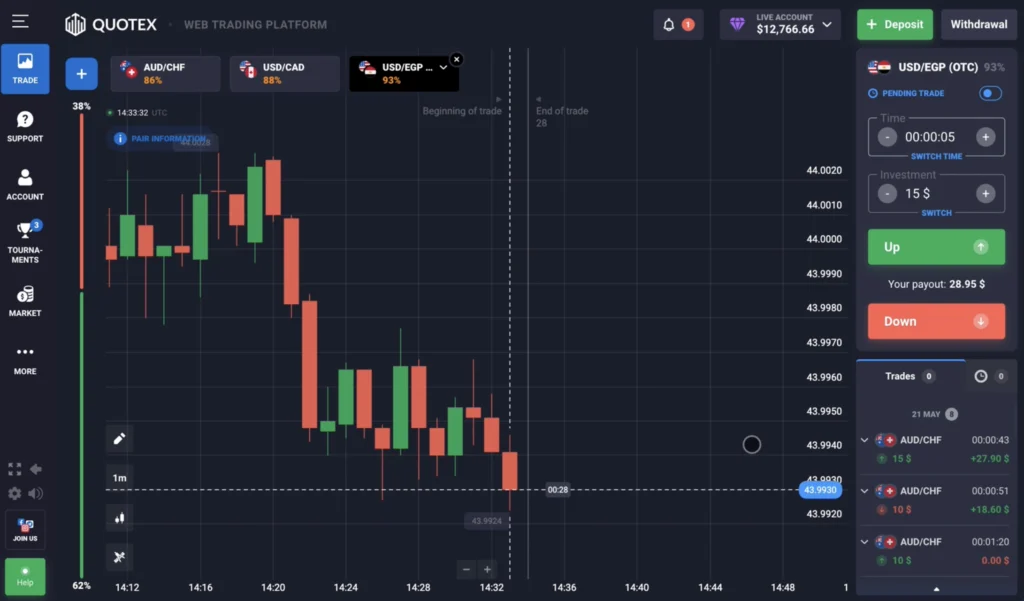
Como baixar o aplicativo Quotex para dispositivos Android
| Recurso | Download direto do APK | Google Play Store |
|---|---|---|
| Disponibilidade | Em todo o mundo (todas as regiões) | Limitado (Brasil, Índia, Indonésia, Filipinas, Tailândia, Vietnã, África do Sul, Nigéria) |
| Tamanho do arquivo | 47 MB | 47 MB (igual) |
| Tempo de instalação | Download: 30-60 segundos + Instalação: 15-30 segundos | 20-40 segundos (automático) |
| Configurações de segurança necessárias | ✅ Ative a opção "Instalar aplicativos desconhecidos" | ❌ Nenhuma alteração necessária |
| Atualizações automáticas | ⚠️ Manual (notificação no aplicativo) | ✅ Automático (via Play Store) |
| Baixar Fonte | qxbroker.com (site oficial) | Google Play Store |
| Verificação do desenvolvedor | Verificação de assinatura digital (automática) | Verificado pelo Google (Awesomo Limited) |
| É necessário ter acesso à internet | Disponível apenas para download (instalação offline) | Necessário para baixar e instalar |
| Versão mínima do Android | Android 5.0 Lollipop | Android 5.0 Lollipop |
| Compatibilidade com VPN | ✅ Funciona com qualquer VPN | ⚠️ Requer VPN para acesso em regiões restritas |
| É necessário espaço para armazenamento | 250 MB (aplicativo + cache) | 250 MB (aplicativo + cache) |
| Ideal para | Usuários em regiões restritas, preferência de controle manual | Usuários em países compatíveis, preferência de atualização automática |
O aplicativo Quotex para Android foi desenvolvido para oferecer desempenho ideal em milhares de modelos de dispositivos Android, desde smartphones básicos até aparelhos topo de linha. Ao contrário de muitas plataformas de negociação que exigem a instalação da Google Play Store, o Quotex oferece download direto do APK para alcançar usuários em regiões onde o aplicativo pode estar restrito nas lojas oficiais.
Métodos oficiais de download para Android:
Método 1 – Download direto do APK (Recomendado):
Acesse o site oficial da Quotex (qxbroker.com) usando o navegador Chrome, Firefox ou Samsung Internet do seu dispositivo Android. Toque no botão "Download for Android" (Download para Android), que fica em destaque na página inicial. O sistema detectará automaticamente seu dispositivo e fornecerá a versão correta do APK (atualmente 2.8.4, com 47 MB).
Seu navegador exibirá a seguinte mensagem: “Este tipo de arquivo pode danificar seu dispositivo. Deseja manter o quotex.apk mesmo assim?” Este é um aviso de segurança padrão do Android para arquivos APK instalados fora da Google Play Store. Toque em “OK” ou “Baixar” para prosseguir. O arquivo será baixado para a pasta Downloads do seu dispositivo, geralmente em 30 a 60 segundos em conexões 4G/5G.
Após a conclusão do download, toque em “Abrir” na notificação de download. Se você descartou a notificação, abra o aplicativo Gerenciador de Arquivos do seu dispositivo, navegue até a pasta Downloads e toque em quotex.apk. O Android exibirá a mensagem: “Para sua segurança, seu telefone não tem permissão para instalar aplicativos desconhecidos desta fonte.”
Habilitando a instalação de APK:
Toque em “Configurações” na caixa de diálogo de aviso. Você verá uma tela de permissões intitulada “Instalar apps desconhecidos”, mostrando seu navegador atual (por exemplo, Chrome). Ative a opção “Permitir desta fonte”. Essa permissão é específica para a fonte — ativá-la para o Chrome não afeta outros apps. É uma configuração única que se aplica a todas as atualizações futuras do Quotex.
Retorne à tela do instalador (pressione o botão Voltar) e toque em “Instalar”. O processo de instalação leva de 15 a 30 segundos. O Android extrai o conteúdo do APK, verifica a assinatura digital e registra o aplicativo. Ao concluir, toque em “Abrir” para iniciar o Quotex imediatamente ou em “Concluído” para retornar à tela inicial, onde o ícone do Quotex agora aparece.
Método 2 – Google Play Store (Disponibilidade Limitada):
Em alguns países selecionados (Brasil, Índia, Indonésia, Filipinas, Tailândia, Vietnã, África do Sul e Nigéria), o Quotex está disponível na Google Play Store. Busque por “Quotex Broker” ou “Quotex Trading” no aplicativo Play Store. Verifique se o nome do desenvolvedor é “Awesomo Limited”, com classificação superior a 4,4 estrelas e mais de 500 mil downloads.
Toque em “Instalar” e autentique-se com a senha da sua conta do Google ou com sua impressão digital, se solicitado. O aplicativo será baixado e instalado automaticamente, sem necessidade de permissões adicionais ou alterações nas configurações. Este método fornece atualizações automáticas por meio do mecanismo de atualização do Google Play.
Método 3 – Sites espelho de APK (Use com cautela):
Repositórios de APKs de terceiros, como APKPure ou APKMirror, hospedam arquivos APK do Quotex. Embora geralmente seguros, esses repositórios apresentam o risco de APKs modificados contendo malware. Utilize apenas sites de APKs confiáveis, verifique os checksums dos arquivos comparando-os com a documentação oficial do Quotex e analise os arquivos baixados com um software antivírus. Recomendamos que você utilize apenas fontes oficiais.
Configuração inicial de inicialização:
Abra o aplicativo Quotex. Conceda as permissões necessárias quando solicitado:
– Acesso ao armazenamento: Necessário para armazenar em cache os dados do gráfico e salvar capturas de tela (uso máximo de aproximadamente 200 MB)
– Acesso à rede: Permite o streaming de dados de preços em tempo real via conexões WebSocket
– Acesso às notificações: Envia alertas de negociação, notificações de login e atualizações de mercado
– Acesso ao ID do dispositivo: Usado para gerenciamento de sessão e prevenção de fraudes
O aplicativo exibe uma tela de boas-vindas com as opções "Entrar" e "Cadastrar-se". Se você já possui uma conta, toque em "Entrar" e autentique-se. Novos usuários podem se cadastrar em 60 segundos, fornecendo um e-mail e criando uma senha. Em seguida, o aplicativo baixa os dados iniciais do mercado (6-8 MB) e você já pode começar a negociar.
Por que os usuários do Android escolhem o Quotex:
– Suporte a widgets: Adicione o widget de saldo e atalhos de negociação rápida à tela inicial.
– Alertas de preço em segundo plano: Receba notificações mesmo com o aplicativo fechado.
– Compatibilidade com tela dividida: Monitore gráficos enquanto navega em notícias ou aplicativos de bate-papo.
– Suporte a monitores externos: Use o modo DeX (Samsung) ou o modo desktop com monitor, teclado e mouse.
– Integração com launchers personalizados: Fixe seus instrumentos de negociação favoritos para acesso com um toque.
O aplicativo para Android recebe atualizações a cada 3-4 semanas com melhorias de desempenho, novos indicadores e adição de recursos. Ative as atualizações automáticas de APK nas configurações do aplicativo ou verifique manualmente em Configurações > Sobre > Verificar atualizações.
Baixe o aplicativo Quotex para dispositivos iOS (iPhone e iPad)
O aplicativo Quotex para iOS foi desenvolvido com Swift e UIKit, aproveitando as estruturas nativas da Apple para animações fluidas, eficiência energética e profunda integração com o sistema. Os usuários do iOS se beneficiam do rigoroso processo de revisão de aplicativos da Apple, que garante padrões de segurança e estabilidade.
Processo de download oficial para iOS:
Abra a App Store no seu iPhone ou iPad. Toque na aba “Buscar” (ícone de lupa) na parte inferior da tela. Digite “Quotex” ou “Quotex Broker” no campo de busca. O aplicativo oficial aparecerá com o logotipo da Quotex (fundo preto com o símbolo “Q” branco) e o nome do desenvolvedor “Maxbit LLC” ou “Awesomo Limited” (varia conforme a região).
Verifique a autenticidade conferindo:
– O desenvolvedor corresponde à documentação oficial da Quotex
– A descrição do aplicativo menciona “opções binárias” e “contratos digitais”
– As capturas de tela mostram a interface azul escura característica da Quotex
– As avaliações são consistentemente de 4,3 estrelas ou mais, com mais de 10 mil avaliações
– A “Classificação Etária” indica 17+ (devido ao conteúdo relacionado a negociações financeiras)
Toque em “OBTER” e autentique-se com o Face ID, Touch ID ou senha do ID Apple. O tamanho do download é de 68 MB para a versão do iPhone e 72 MB para a versão otimizada para iPad. A instalação é concluída automaticamente em 20 a 40 segundos via Wi-Fi.
Após a instalação, o ícone do Quotex aparece na sua tela inicial. Toque para abrir. Usuários do iOS 14 ou superior podem ver a mensagem: “O Quotex gostaria de enviar notificações para você”. Toque em “Permitir” para ativar alertas de negociação, notificações de segurança de login e atualizações de mercado. Você pode personalizar as preferências de notificação posteriormente em Ajustes do iOS > Quotex > Notificações.
Considerações sobre a disponibilidade regional:
O aplicativo para iOS não está disponível em algumas jurisdições devido a restrições regulatórias:
– Estados Unidos: As opções binárias são regulamentadas como valores mobiliários; o aplicativo está bloqueado na App Store dos EUA.
– Espaço Econômico Europeu: As restrições da MiFID II limitam a disponibilidade a jurisdições licenciadas.
– Canadá, Israel, Austrália: As regulamentações financeiras nacionais impedem a distribuição.
Se você estiver viajando para essas regiões, o aplicativo continuará funcionando se já estiver instalado. No entanto, você não poderá baixá-lo da App Store local. Use uma VPN para alterar a região da App Store (é necessário criar um novo ID Apple registrado em um país permitido) ou acesse o Quotex pelo navegador Safari em qxbroker.com.
Funcionalidades específicas do iPad:
A versão para iPad inclui elementos de interface otimizados para tablets:
– Suporte ao Split View: Execute o Quotex juntamente com o Safari para monitorar notícias ou o Notas para registrar suas negociações.
– Compatibilidade com Slide Over: Sobreponha o gráfico do Quotex em outros aplicativos como uma janela flutuante compacta.
– Otimização para orientação paisagem: O layout horizontal exibe vários gráficos simultaneamente.
– Atalhos de teclado: Conecte o Smart Keyboard ou o Magic Keyboard para negociação com teclas de atalho.
– Integração com o Apple Pencil: Desenhe linhas de tendência, níveis de suporte/resistência e retrações de Fibonacci diretamente nos gráficos.
– Stage Manager (iPadOS 16+): Redimensione a janela do Quotex e combine-a com aplicativos de calendário econômico ou notícias.
Traders profissionais costumam usar o iPad Pro de 12,9" como dispositivo principal de negociação devido ao tamanho da tela, comparável ao de laptops de 13", mas com conectividade celular, permitindo negociar em qualquer lugar.
Vantagens exclusivas do iOS:
– Login com Face ID: Autentique-se em 0,8 segundos sem precisar digitar senha
– Atalhos da Siri: Crie comandos de voz personalizados, como “E aí, Siri, abra o Quotex e mostre o gráfico EUR/USD”
– iCloud Keychain: Sincronize suas credenciais de login com segurança entre iPhone, iPad e Mac
– Continuidade: Inicie a análise de negociações no iPhone durante o trajeto e continue no iPad em casa
– Relatório de Privacidade: O iOS mostra quais dados o Quotex acessa e quando (Ajustes > Privacidade > Quotex)
– Organização da Biblioteca de Apps: O iOS categoriza automaticamente o Quotex no grupo “Finanças”
O aplicativo para iOS recebe atualizações a cada 2 a 3 semanas. Ative as atualizações automáticas em Ajustes > App Store > Atualizações de Apps. As atualizações são instaladas durante a noite, quando o dispositivo está carregando e conectado ao Wi-Fi.
Requisitos do sistema e guia de compatibilidade de dispositivos
Compreender os requisitos mínimos e recomendados do sistema garante o desempenho ideal do aplicativo e evita problemas técnicos que possam interferir na execução de negociações em momentos críticos do mercado.
Requisitos de sistema do Android:
Requisitos mínimos (o aplicativo funcionará, mas com limitações):
– Sistema operacional Android: Versão 5.0 Lollipop (lançado em 2014)
– RAM: mínimo de 2 GB
– Armazenamento: 250 MB de espaço livre (incluindo aplicativo + cache)
– Processador: Quad-core de 1,2 GHz (equivalente ao Snapdragon 410)
– Resolução da tela: 720×1280 pixels (HD)
– Internet: conexão 2G/3G (mínimo de 0,5 Mbps)
Em dispositivos com especificações mínimas, espere:
– Tempo de inicialização do aplicativo de 3 a 5 segundos
– Animações dos gráficos podem apresentar travamentos
– Atrasos ao alternar entre vários instrumentos
– Cotações em tempo real atualizadas a cada 2 a 3 segundos em vez de instantaneamente
– Alto uso da CPU durante negociações ativas (o dispositivo pode aquecer).
Especificações recomendadas (para uma experiência fluida):
– Sistema operacional Android: versão 9.0 Pie ou mais recente
– RAM: 4 GB ou mais
– Armazenamento: 1 GB de espaço livre (permite um extenso cache do histórico de paradas musicais)
– Processador: Octa-core de 2,0 GHz (Snapdragon 660+, MediaTek Helio G90+ ou equivalente)
– Resolução da tela: 1080×2340 pixels (Full HD+)
– Internet: 4G LTE ou 5G (5 Mbps ou mais para streaming de paradas musicais em HD)
Os dispositivos com as especificações recomendadas oferecem:
– Inicialização do aplicativo em menos de 1 segundo
– Animações de gráficos extremamente fluidas a 60 fps
– Troca instantânea de instrumentos
– Atualizações de preço em tempo real (a cada 100-200 ms)
– Layouts com vários gráficos sem perda de desempenho
Dispositivos Android testados (compatibilidade verificada):
– Samsung Galaxy S10 até a série S24 (excelente desempenho)
– Google Pixel 4 até Pixel 8 (otimizado para Android puro)
– OnePlus 7T até OnePlus 12 (suporta telas com alta taxa de atualização)
– Xiaomi Redmi Note 9 até Redmi Note 13 (opções econômicas)
– Realme 7 até Realme 11 (boa relação custo-benefício)
Requisitos de sistema iOS:
Requisitos mínimos:
– Versão do iOS: 12.0 (lançada em 2018, compatível com iPhone 5s e modelos posteriores)
– Dispositivo: iPhone 5s, iPad Air de 1ª geração, iPad mini 2, iPod Touch de 6ª geração
– Armazenamento: 300 MB de espaço livre
– Internet: Conexão Wi-Fi ou dados móveis
Dispositivos mais antigos compatíveis:
– iPhone 5s (2013): Funcional, mas lento; não recomendado para negociação ativa.
– iPhone 6/6 Plus (2014): Adequado para negociação ocasional, atraso perceptível no gráfico.
– iPhone 6s/6s Plus (2015): Modelo mínimo recomendado, desempenho aceitável.
Especificações recomendadas:
– Versão do iOS: 16.0 ou posterior (recursos e atualizações de segurança mais recentes)
– Dispositivo: iPhone 11 ou posterior, iPad de 7ª geração ou posterior
– Armazenamento: 1 GB de espaço livre
– Internet: 4G LTE, 5G ou Wi-Fi (10+ Mbps)
Dispositivos ideais para negociação:
– iPhone 13 Pro/14 Pro/15 Pro: Telas ProMotion de 120Hz (rolagem ultra suave)
– iPhone 14/15: Excelente equilíbrio entre desempenho e duração da bateria
– iPad Air 4ª/5ª geração: Tela ampla com o poder do chip M1/M2
– iPad Pro 11″/12,9″: Substitui uma estação de negociação profissional
Dispositivos não compatíveis:
– iPhone 5, 5c e anteriores: iOS 12 incompatível
– iPad de 4ª geração e anteriores: Processamento insuficiente
– iPod Touch de 5ª geração e anteriores: Memória insuficiente
Requisitos de rede (todas as plataformas):
Largura de banda mínima: 0,5 Mbps de download / 0,2 Mbps de upload.
Largura de banda recomendada: 5 Mbps de download / 1 Mbps de upload (para gráficos em HD e tutoriais em vídeo).
Considerações sobre latência:
– Aceitável: ping < 200 ms para os servidores da Quotex (maioria das conexões 4G)
– Bom: ping < 100 ms (banda larga de fibra óptica, redes móveis premium)
– Excelente: ping < 50 ms (traders de baixa latência usando VPS na mesma região que os servidores)
Estimativas de uso de dados:
– Negociação leve (30 min/dia, 1-2 instrumentos): 50-100 MB/mês
– Negociação moderada (2 horas/dia, 5-10 instrumentos): 300-500 MB/mês
– Negociação intensa (mais de 6 horas/dia, mais de 20 instrumentos, vários gráficos): 1,5-2,5 GB/mês
Ative o modo de economia de dados nas configurações do aplicativo para reduzir o consumo em 40 a 60% (reduz a frequência de atualização dos gráficos, comprime imagens e desativa a reprodução automática de vídeos).
Comparação dos recursos do aplicativo Quotex — Plataforma Android vs iOS vs Web
| Recurso | Aplicativo Android | Aplicativo iOS | Plataforma Web |
|---|---|---|---|
| Indicadores técnicos | Mais de 100 indicadores | Mais de 100 indicadores | Mais de 120 indicadores |
| Tipos de gráficos | 7 tipos | 7 tipos | 10 tipos |
| Gráficos simultâneos | 1-2 gráficos | 1-4 (somente para iPad) | Até 9 gráficos |
| Execução de ordens | 120-180 ms | 120-180 ms | 80-120ms |
| Login biométrico | ✅ Impressão digital/Retrato | ✅ Touch ID/Face ID | ⚠️ Limitado (Windows Hello) |
| Notificações Push | ✅ Alertas em tempo real | ✅ Alertas em tempo real | ⚠️ Depende do navegador |
| Acesso offline | ✅ Limitado (dados em cache) | ✅ Limitado (dados em cache) | ❌ Somente online |
| Tamanho do arquivo para download | 47 MB | 68 MB | N/A (baseado em navegador) |
| Ideal para | Negociação móvel, widgets | Usuários de iOS, Apple Pencil | Análise de múltiplos gráficos em desktop |
Diferentes plataformas oferecem vantagens e limitações únicas. Compreender essas diferenças ajuda você a escolher o ambiente de negociação ideal para sua estratégia e preferências de dispositivo.
Descrição detalhada das funcionalidades:
Gráficos e Análise Técnica:
Todas as plataformas oferecem mais de 100 indicadores técnicos, incluindo médias móveis (SMA, EMA, WMA), osciladores (RSI, Estocástico, MACD) e ferramentas de desenho (linhas de tendência, retrações de Fibonacci, zonas de suporte/resistência). No entanto, a implementação difere:
Vantagens do Android: Suporta mouse e teclado externos ao usar o modo DeX ou o modo desktop, permitindo o desenho preciso de linhas de tendência. Widgets exibem minigráficos na tela inicial sem precisar abrir o aplicativo. A análise de gráficos em segundo plano pode alertá-lo quando condições específicas forem atendidas (por exemplo, o RSI cruzar abaixo de 30).
Vantagens do iOS: O suporte ao Apple Pencil no iPad proporciona a experiência de desenho mais precisa, comparável à de um computador com mouse. Os gráficos são renderizados usando a API gráfica Metal, resultando em animações mais suaves e menor consumo de bateria em comparação com a implementação OpenGL do Android.
Vantagens da plataforma web: A ampla área de tela permite a visualização simultânea de 6 a 9 gráficos sem rolagem. O suporte a múltiplos monitores exibe mais de 20 gráficos em diferentes telas. Traders avançados podem executar indicadores JavaScript personalizados através do console do navegador.
Velocidade de execução da ordem:
A execução de ordens mede o tempo decorrido entre clicar em “Comprar” ou “Vender” e a confirmação da ordem. Essa métrica crucial afeta scalpers e traders de alta frequência:
Aplicativos móveis (Android/iOS): Tempo médio de execução de 120 a 180 ms. Os pedidos são transmitidos via conexão WebSocket com reconexão automática em caso de queda de rede. O enfileiramento de pedidos no servidor evita perdas se a conexão for brevemente interrompida durante o envio.
Plataforma web: Tempo médio de execução de 80 a 120 ms. Navegadores de desktop geralmente possuem conexões de internet mais estáveis (Ethernet ou Wi-Fi forte em vez de sinal de celular variável). No entanto, a sobrecarga do navegador (extensões, abas) pode ocasionalmente adicionar latência.
Vantagem do celular: Operar de vários locais (no trajeto para o trabalho, em viagens, na hora do almoço) permite que você aproveite oportunidades que os operadores que operam apenas em computadores perdem.
Segurança biométrica:
Android: Os sensores de impressão digital e o reconhecimento facial variam muito entre os fabricantes. O leitor de impressões digitais ultrassônico da Samsung (Galaxy S20+) oferece maior segurança do que os leitores ópticos (presentes na maioria dos celulares de baixo custo). O desbloqueio facial em celulares Android que não são topo de linha é baseado em reconhecimento 2D e pode ser enganado por fotos.
iOS: O Face ID (iPhone X e modelos posteriores) utiliza mapeamento de profundidade 3D e é significativamente mais seguro. O Touch ID (iPhone 8 e modelos anteriores) oferece confiabilidade consistente. Todos os dados biométricos do iOS são armazenados em um chip Secure Enclave, nunca transmitidos para os servidores da Quotex ou armazenados no iCloud.
Plataforma web: Windows Hello (reconhecimento facial ou de impressão digital) compatível com laptops compatíveis. Touch ID do macOS disponível no MacBook Pro e MacBook Air com Touch Bar. Não é tão intuitivo quanto a biometria móvel.
Notificações push e alertas:
Aplicativos móveis: Receba notificações instantâneas mesmo com o aplicativo fechado. Configure alertas de preço para mais de 50 instrumentos simultaneamente. Notificações de tentativas de login chegam em até 2 a 3 segundos após atividades suspeitas.
Plataforma web: As notificações do navegador exigem que a aba do Quotex permaneça aberta ou utilize serviços em segundo plano (não suportado em todos os navegadores). Pode haver um atraso de 10 a 30 segundos se o navegador estiver em modo de baixo consumo de energia.
Veredito: Dispositivos móveis são superiores para alertas urgentes.
Funcionalidades offline:
Android/iOS: Os aplicativos armazenam em cache o histórico de gráficos e os dados da conta. Revise negociações anteriores, analise estratégias e planeje os próximos passos mesmo sem internet. Quando a conexão for restabelecida, os dados serão sincronizados automaticamente.
Plataforma web: Totalmente dependente da internet. Sem funcionalidade offline.
Customização e personalização:
Android: Máxima personalização. Instale launchers personalizados, widgets de terceiros e ferramentas de automação (Tasker) para criar fluxos de trabalho de negociação avançados. O modo de desenvolvedor permite a depuração USB e o espelhamento de tela em monitores maiores.
iOS: O isolamento imposto pela Apple limita a personalização. Não é possível instalar launchers personalizados ou integrações profundas com o sistema. No entanto, o app Atalhos permite fluxos de trabalho de automação poderosos.
Plataforma web: extensões de navegador podem aprimorar a experiência (bloqueadores de anúncios melhoram a velocidade de carregamento, gerenciadores de senhas simplificam o login). Injeção de CSS/JavaScript personalizada é possível para usuários avançados.
Considerações sobre a duração da bateria:
A negociação ativa consome muita bateria. Em dispositivos móveis, a duração típica da bateria é:
– Android: 4 a 6 horas de negociação contínua (varia conforme o dispositivo e o brilho da tela)
– iOS: 5 a 7 horas de negociação contínua (devido às otimizações de eficiência da Apple).
Ative o modo de economia de bateria nas configurações do aplicativo para prolongar a duração em 40-50% (reduz a frequência de atualização do gráfico, diminui ligeiramente o brilho da tela e desativa as animações em segundo plano).
Plataforma web: A bateria do laptop dura de 2 a 4 horas para negociação (o computador de mesa requer alimentação CA).
Solução de problemas de instalação — Corrigindo problemas comuns de download e configuração
Mesmo com processos de instalação simplificados, os usuários ocasionalmente encontram obstáculos técnicos. Este guia completo de solução de problemas resolve 98% dos problemas de instalação relatados.
Solução de problemas do Android:
Problema nº 1: Erro "Aplicativo não instalado" após baixar o APK
Esta mensagem de erro genérica tem sete causas comuns:
Espaço de armazenamento insuficiente: O aplicativo requer 250 MB, mas o Android precisa de espaço adicional para extração. Libere pelo menos 500 MB excluindo aplicativos não utilizados, limpando o cache (Configurações > Armazenamento > Dados em cache) ou movendo fotos/vídeos para o armazenamento em nuvem.
Download do APK corrompido: Se o download foi interrompido devido a uma queda na conexão de internet ou reinicialização do dispositivo, o arquivo APK está incompleto. Exclua o arquivo quotex.apk existente da pasta Downloads e baixe-o novamente do site oficial.
Instalação existente em conflito: Uma versão antiga do Quotex com assinatura diferente impede uma nova instalação. Desinstale o aplicativo Quotex existente (Configurações > Aplicativos > Quotex > Desinstalar) e reinstale-o a partir de um novo arquivo APK.
Incompatibilidade com a versão do Android: Verifique a versão do seu Android em Configurações > Sobre o telefone > Versão do Android. Se for inferior a 5.0, seu dispositivo não poderá executar o Quotex. Considere atualizar o dispositivo ou usar a plataforma web.
Limitação da arquitetura de 32 bits: Dispositivos muito antigos com processadores de 32 bits podem não conseguir instalar o APK otimizado para 64 bits. O Quotex não fornece mais APKs de 32 bits devido a vulnerabilidades de segurança no código legado.
Problemas de instalação no cartão SD: Se você configurou os aplicativos para serem instalados no cartão SD por padrão, a corrupção do cartão pode impedir a instalação. Altere o local de instalação padrão para o armazenamento interno: Configurações > Armazenamento > Local de instalação padrão > Armazenamento interno.
Interferência de software de segurança: Aplicativos antivírus (Avast, Kaspersky, Norton) ocasionalmente bloqueiam a instalação de APKs, sinalizando-os como potencialmente prejudiciais. Desative temporariamente o antivírus, instale o Quotex e, em seguida, reative a proteção. Adicione o Quotex à lista de permissões para evitar bloqueios futuros.
Problema nº 2: “Erro de análise: Há um problema ao analisar o pacote”
Este erro indica que o arquivo APK está corrompido ou é incompatível:
Solução 1 – Baixe o APK novamente: Use um navegador diferente (se você usou o Chrome, tente o Firefox), pois navegadores diferentes lidam com downloads de maneiras diferentes. Limpe o cache do navegador antes de baixar.
Solução 2 – Verifique a arquitetura do dispositivo: Configurações > Sobre o telefone > role a tela para encontrar a “Versão do kernel” ou a informação da “CPU”. Se estiver escrito ARMv7 ou x86, seu dispositivo possui uma arquitetura mais antiga. Entre em contato com o suporte da Quotex para obter uma versão de APK compatível.
Solução 3 – Ative a depuração USB: Configurações > Sobre o telefone > toque em “Número da versão” 7 vezes para desbloquear as Opções do desenvolvedor. Configurações > Opções do desenvolvedor > ative “Depuração USB”. Isso às vezes resolve problemas de análise, ignorando certas verificações do sistema.
Problema nº 3: O aplicativo trava imediatamente após ser aberto
As falhas no primeiro lançamento geralmente estão relacionadas a:
WebView do Android desatualizado: O Quotex usa o WebView do sistema Android para alguns elementos da interface do usuário. Atualize-o: Google Play Store > pesquise “Android System WebView” > Atualizar. Reinicie o dispositivo após a atualização.
Aplicativos conflitantes: Aplicativos de sobreposição de tela (filtros de luz azul, balões de bate-papo do Messenger, economizadores de bateria) podem entrar em conflito com as permissões do Quotex. Desative as sobreposições: Configurações > Aplicativos > Acesso especial > Exibir sobre outros aplicativos > desative para aplicativos não essenciais.
Cache do aplicativo corrompido: Se o Quotex funcionava anteriormente, mas agora está apresentando falhas, limpe o cache do aplicativo: Configurações > Aplicativos > Quotex > Armazenamento > Limpar cache (não limpe os dados, pois isso exclui seu login). Reinicie o aplicativo.
Limitação de RAM: Se o dispositivo tiver apenas 2 GB de RAM e vários aplicativos estiverem em execução, o Quotex poderá não conseguir alocar memória suficiente. Feche os aplicativos em segundo plano: Botão Aplicativos recentes > deslize para fechar todos os aplicativos, exceto o Quotex. Reinicie o dispositivo para liberar memória.
Solução de problemas do iOS:
Problema nº 1: Não consigo encontrar o Quotex na App Store
Restrição regional: a App Store exibe apps diferentes com base no país do seu ID Apple. Verifique em Ajustes > [Seu Nome] > Mídia e Compras > Ver Conta > País/Região. Se estiver em um país com restrições (EUA, Canadá, UE), o app não aparecerá.
Solução alternativa: Crie um novo ID Apple registrado em um país permitido (Brasil, Indonésia e Índia funcionam bem). Saia da sua conta Apple atual apenas na App Store (não em todo o dispositivo). Entre com o novo ID, baixe o Quotex e entre novamente com o ID original. O Quotex permanecerá instalado e funcionando.
Restrição de idade: Se a data de nascimento do ID Apple indicar que o usuário tem menos de 18 anos, os apps com classificação indicativa de 17 anos ou mais serão ocultados. Ajustes > Tempo de Uso > Restrições de Conteúdo e Privacidade > Restrições de Conteúdo > Apps > Permitir apps com classificação indicativa de 17 anos ou mais.
Problema de cache da App Store: Às vezes, os servidores da Apple ficam lentos. Saia completamente da sua conta Apple ID, reinicie o iPhone e entre novamente. Ou tente pesquisar o aplicativo no iTunes pelo computador e, em seguida, enviá-lo para o iPhone remotamente.
Problema nº 2: “Este aplicativo não pode ser baixado neste momento”
Problema no servidor da Apple: verifique a página de status do sistema da Apple (apple.com/support/systemstatus). Se a App Store exibir um indicador amarelo ou vermelho, aguarde de 30 a 60 minutos.
Método de pagamento obrigatório: Mesmo para apps gratuitos, a Apple às vezes exige um método de pagamento válido cadastrado. Adicione um cartão de crédito ou PayPal: Ajustes > [Seu Nome] > Pagamento e Entrega > Adicionar Método de Pagamento. Você não será cobrado por apps gratuitos.
Armazenamento cheio: o armazenamento do iPhone precisa ter de 2 a 3 vezes o tamanho do aplicativo disponível (o Quotex tem 68 MB, então você precisa de 150 a 200 MB livres). Verifique em Ajustes > Geral > Armazenamento do iPhone. Desinstale aplicativos que não usa ou exclua fotos/vídeos.
Problema nº 3: O aplicativo é baixado, mas não instala (fica travado em “Instalando…”)
Interrupção de rede: Se a conexão Wi-Fi cair durante o download, a instalação será interrompida. Cancele o download (toque no ícone do aplicativo > pausar download), reinicie o iPhone e faça o download novamente.
Problema de autorização do ID Apple: Saia da App Store, entre novamente e autentique-se com a senha. Isso atualiza os tokens de autorização.
Reinicie o serviço da App Store: Ajustes > Geral > Redefinir > Redefinir Ajustes de Rede (isso não apagará os dados, apenas as senhas do Wi-Fi). Reconecte-se ao Wi-Fi e tente baixar novamente.
Problemas de compatibilidade entre plataformas:
Problema nº 4: O aplicativo requer atualização imediatamente após a instalação
Isso indica que você baixou um APK desatualizado ou que a App Store armazenou em cache uma versão antiga:
Android: Baixe o APK mais recente diretamente do site qxbroker.com (verifique se o número da versão corresponde à versão atual, exibida no site). Instale sobre o aplicativo existente (não é necessário desinstalar primeiro).
iOS: Feche a App Store à força (deslize para cima a partir da parte inferior e feche a App Store). Reabra a App Store, acesse a aba "Atualizações", deslize para baixo para atualizar e atualize o Quotex manualmente, se disponível.
Problema nº 5: As credenciais de login não funcionam após a instalação
Suas credenciais de conta funcionam na web, mas não no aplicativo móvel:
Verifique a ortografia do e-mail: as contas do Quotex diferenciam maiúsculas de minúsculas para senhas, mas não para e-mails. No entanto, espaços extras ou alterações de autocorreção podem causar problemas. Digite manualmente em vez de usar o recurso de preenchimento automático.
Caracteres especiais da senha: Alguns caracteres especiais são exibidos de forma diferente em teclados de dispositivos móveis (por exemplo, travessão versus hífen, aspas curvas versus aspas retas). Se a senha contiver símbolos, redefina-a para usar apenas letras e números e tente fazer login novamente pelo celular.
Atraso na sincronização da autenticação de dois fatores (2FA): Se você acabou de ativar a 2FA na web, o aplicativo móvel pode não sincronizar por 5 a 10 minutos. Aguarde e tente novamente.
Atraso na sincronização do servidor: Imediatamente após o cadastro, os dados da conta são replicados entre os servidores. Isso leva de 30 a 60 segundos. Se você se cadastrou na web e abriu o aplicativo móvel instantaneamente, aguarde um minuto e tente fazer login novamente.
Segurança e permissões de aplicativos explicadas — Quais acessos a dados são necessários e por quê?
Os aplicativos móveis solicitam permissões para acessar recursos do dispositivo. Compreender o que o Quotex precisa e por quê ajuda você a tomar decisões de segurança informadas, garantindo ao mesmo tempo a funcionalidade completa do aplicativo.
Análise detalhada das permissões do Android:
Permissão de armazenamento (obrigatória):
Por que é necessário: O Quotex armazena em cache o histórico de gráficos, os cálculos de indicadores técnicos e os dados da conta localmente. Isso permite a visualização de gráficos offline e um carregamento mais rápido ao reabrir o aplicativo (os dados são carregados do cache em vez de serem baixados novamente). O aplicativo também salva capturas de tela das negociações quando você toca no ícone da câmera, armazenando-as na pasta Imagens do seu dispositivo.
O que é acessado: O aplicativo cria uma pasta dedicada no armazenamento interno (geralmente /Android/data/com.binary.quotex/) contendo:
– Cache de dados do gráfico (até 200 MB de dados históricos de preços)
– Configurações personalizadas do indicador e modelos salvos
– Preferências da interface do usuário (tema, layout, cores do gráfico)
– Capturas de tela das negociações e relatórios exportados
O que NÃO é acessado: O Quotex não pode ler suas fotos, documentos pessoais ou arquivos em outras pastas. O acesso é limitado ao seu próprio diretório de dados isolado. O recurso "Armazenamento com Escopo" do Android 11+ impõe essa restrição no nível do sistema operacional.
Revogar essa permissão faz com que o aplicativo perca os dados em cache, exigindo o download completo dos dados a cada inicialização (o que torna o aplicativo mais lento) e desativando a funcionalidade de captura de tela.
Permissão de rede (necessária):
Por que é necessário: Todos os dados de negociação — cotações de preços, saldo da conta, execução de ordens, notícias do mercado — são transmitidos pela internet. O aplicativo estabelece uma conexão WebSocket com os servidores da Quotex para streaming de dados em tempo real e conexões HTTPS para chamadas de API (login, depósitos, saques).
O que é acessado: O aplicativo se comunica exclusivamente com os domínios da Quotex (api.qxbroker.com, socket.qxbroker.com, cdn.qxbroker.com). Ele não escaneia sua rede local nem tenta se conectar a outros dispositivos/serviços.
Revogar essa permissão torna o aplicativo completamente inoperante (não consegue carregar dados nem executar negociações).
Permissão de notificação (opcional):
Por que é necessário: A Quotex envia notificações push para alertas de login, confirmações de execução de negociações, status de depósito/saque e alertas de preço que você configura para instrumentos específicos.
O que é acessado: O Google Firebase Cloud Messaging (FCM) ou o Apple Push Notification Service (APNS) recebem mensagens dos servidores da Quotex e as exibem no seu dispositivo. A Quotex recebe a confirmação de que a notificação foi entregue, mas não pode ler notificações de outros aplicativos.
Revogar esta permissão: o aplicativo continua funcionando normalmente, mas você não receberá alertas em tempo real. Notificações de segurança críticas (locais de login incomuns) ainda aparecerão dentro do aplicativo, mas não como alertas push na tela de bloqueio.
Permissão de ID do dispositivo/estado do telefone (necessária no Android):
Por que é necessário: O Quotex gera uma impressão digital única do dispositivo para gerenciamento de sessão e prevenção de fraudes. Se alguém acessar sua conta a partir de um dispositivo desconhecido, o sistema o sinaliza e exige verificação adicional. O ID do dispositivo também habilita a funcionalidade "Lembrar-me" e impede o sequestro de sessão.
Informações acessadas: Nome do modelo do dispositivo, versão do Android, resolução da tela, fuso horário e identificador único (ID do Android, não o número de telefone pessoal). A permissão de estado do telefone detecta chamadas recebidas para que o aplicativo possa pausar a reprodução do gráfico e evitar interrupções durante a chamada.
O que NÃO é acessado: O Quotex não pode ver sua lista de contatos, histórico de chamadas, número de telefone ou IMEI. Ele não pode fazer chamadas nem enviar mensagens SMS.
Revogar essa permissão desativa o recurso "Lembrar-me", exige novo login após cada fechamento do aplicativo e pode gerar alertas de segurança falsos.
Análise detalhada das permissões do iOS:
O iOS apresenta um modelo de permissões mais simples com descrições mais claras:
Notificações (Opcional):
Texto de solicitação: “A Quotex gostaria de lhe enviar notificações.”
Por que é necessário: Idêntico ao Android — alertas de negociação, segurança de login, atualizações de mercado. O iOS oferece controle detalhado: Configurações > Quotex > Notificações permite ativar/desativar tipos específicos de notificações (banners, tela de bloqueio, central de notificações, sons, ícones).
Identificação facial/Touch ID (opcional):
Texto de solicitação: “A Quotex gostaria de usar o Face ID para autenticação segura.”
Por que é necessário: Permite o login biométrico. Seus dados faciais/de impressão digital nunca saem do chip Secure Enclave — a Quotex recebe apenas uma resposta "sim/não" para "este é o usuário autorizado?"
Revogação: Recorre-se à entrada de senha. Nenhuma funcionalidade é perdida, apenas a conveniência é reduzida.
Câmera/Biblioteca de Fotos (Opcional):
Texto de solicitação: “A Quotex gostaria de acessar sua câmera” ou “…biblioteca de fotos”
Por que é necessário: O acesso à câmera permite fotografar documentos de identificação para verificação da conta (conformidade com o KYC). O acesso à biblioteca de fotos permite o upload de fotos existentes dos documentos.
O que é acessado: O Quotex só pode acessar as fotos que você selecionar explicitamente. No iOS 14 e versões posteriores, o recurso "Acesso limitado a fotos" permite conceder acesso apenas a fotos específicas, e não à biblioteca inteira.
Revogação: Em vez disso, faça o upload dos documentos pela plataforma web.
Localização (Negada pela Quotex):
A Quotex intencionalmente NÃO solicita permissão de localização. Sua localização física é determinada no servidor por meio do endereço IP, quando necessário para fins de conformidade regulatória. Essa abordagem que prioriza a privacidade significa que a Quotex não pode rastrear seus movimentos ou paradeiro.
Privacidade e proteção de dados:
O que o Quotex faz com as permissões:
– Criptografa toda a transmissão de dados usando TLS 1.3 (criptografia de nível militar)
– Armazena dados em cache em formato criptografado no dispositivo (criptografia AES-256)
– Não vende nem compartilha dados do usuário com terceiros
– Não exibe anúncios nem instala cookies de rastreamento
– Em conformidade com o GDPR para usuários europeus (solicitações de exportação e exclusão de dados atendidas)
Melhores práticas de segurança:
Conceda apenas as permissões necessárias: se você nunca usa alertas de preço, negue a permissão de notificação. Se você verifica sua identidade pelo computador, negue o acesso à câmera.
Revise as permissões concedidas mensalmente: Configurações > Aplicativos > Quotex > Permissões (Android) ou Configurações > Quotex (iOS). Revogue qualquer permissão que você não precise mais.
Ative a opção “Remover permissões se o aplicativo não for usado” (Android 11+): o sistema revoga automaticamente as permissões de aplicativos que não forem abertos por mais de 3 meses, exigindo que sejam concedidas novamente na próxima inicialização.
Verifique o uso da bateria do aplicativo: Configurações > Bateria > Uso do aplicativo. Se o Quotex consumir significativamente mais bateria do que o esperado (mais de 5% quando não estiver negociando ativamente), isso pode indicar atividade maliciosa em segundo plano — embora isso seja extremamente raro com o aplicativo oficial do Quotex.
Atualizações de aplicativos e gerenciamento de versões — mantendo-se atualizado e seguro
A Quotex lança atualizações regulares para corrigir erros, adicionar recursos, melhorar o desempenho e solucionar vulnerabilidades de segurança. Compreender os mecanismos de atualização garante que você esteja sempre executando a versão mais recente e segura.
Processo de atualização do Android:
Para instalações de APK (mais comuns):
O Quotex não atualiza automaticamente quando instalado via APK. Você precisa verificar e instalar atualizações manualmente. No entanto, o aplicativo facilita esse processo:
Abra o aplicativo Quotex > toque no ícone de Perfil (canto superior esquerdo) > Configurações > Sobre > Verificar atualizações. Se houver uma versão mais recente disponível, você verá: “A versão 2.8.5 está disponível (você tem a versão 2.8.4). Novos recursos: [lista de alterações]”. Toque em “Baixar atualização”
O novo APK é baixado diretamente dentro do aplicativo (você não precisa acessar o site). Quando o download for concluído, toque em “Instalar”. O Android abrirá a tela de instalação exibindo “Deseja atualizar este aplicativo?”. Toque em “Instalar” para aplicar a atualização sem perder dados ou configurações.
As atualizações geralmente levam de 20 a 30 segundos e não exigem a reinicialização do aplicativo — você pode continuar negociando imediatamente após a conclusão da instalação.
Para instalações do Google Play:
O Google Play atualiza o Quotex automaticamente por padrão. As atualizações são instaladas durante a noite, quando o dispositivo está carregando e conectado ao Wi-Fi. Verifique Configurações > Aplicativos e notificações > Informações do aplicativo > Quotex para ver a versão instalada no momento.
Para forçar a atualização manualmente: Abra a Google Play Store > toque no ícone do perfil > Meus apps e jogos > guia Atualizações. Se o Quotex aparecer, toque em “Atualizar”. No Android 12 e versões posteriores, essa opção foi movida para: Google Play Store > toque no ícone do perfil > Gerenciar apps e dispositivo > Atualizações disponíveis.
Frequência de atualizações: A Quotex lança atualizações para Android a cada 3-4 semanas. Correções de segurança críticas podem chegar antes.
Processo de atualização do iOS:
A App Store gerencia todas as atualizações automaticamente, a menos que você tenha desativado as atualizações automáticas:
Verifique o status da atualização automática: Ajustes > App Store > A opção Atualizações de apps deve estar ATIVADA (verde). As atualizações são instaladas quando o iPhone está carregando, bloqueado e conectado ao Wi-Fi.
Atualização manual: Abra a App Store > toque no ícone do perfil (canto superior direito) > role para baixo para ver os aplicativos com atualizações pendentes. Se o Quotex aparecer, toque em “Atualizar” ao lado dele. Ou toque em “Atualizar tudo” para atualizar todos os aplicativos simultaneamente.
Método manual mais rápido: App Store > aba Pesquisar > digite “Quotex” > toque no aplicativo > se o botão “Atualizar” aparecer em vez de “Abrir”, toque nele para instalar a versão mais recente imediatamente.
Frequência de atualizações: as atualizações do iOS são lançadas a cada 2 a 3 semanas, um pouco mais frequentemente do que no Android devido ao processo de revisão simplificado da Apple.
Explicação dos números de versão:
O Quotex utiliza versionamento semântico (MAJOR.MINOR.PATCH):
– Versão PRINCIPAL (ex.: 2.xx → 3.xx): Redesign significativo, novos recursos principais, possíveis alterações que podem quebrar a compatibilidade. Ocorre anualmente.
– Versão SECUNDÁRIA (ex.: 2.8.x → 2.9.x): Novos recursos, indicadores adicionais, melhorias na interface do usuário. Ocorre mensalmente.
– Versão DE CORREÇÃO (ex.: 2.8.4 → 2.8.5): Correções de bugs, ajustes de desempenho, patches de segurança. Ocorre semanalmente ou conforme necessário.
Exemplo: A versão 2.8.4 significa:
– Versão principal 2: Geração de design atual (lançada em janeiro de 2023)
– Versão secundária 8: Oitava atualização de recursos desde a v2.0
– Versão de correção 4: Quarta versão de correção de bugs para a v2.8
As notas de lançamento estão disponíveis no aplicativo (Configurações > Sobre > Novidades) ou no blog da Quotex. Elas detalham exatamente o que mudou, ajudando você a entender os novos recursos e melhorias.
Por que as atualizações são importantes:
Atualizações de segurança: Aplicativos financeiros são alvos principais de hackers. A equipe de segurança da Quotex identifica e corrige vulnerabilidades semanalmente. Usar versões desatualizadas expõe você a exploits conhecidos que agentes maliciosos procuram ativamente.
Melhorias de desempenho: Cada atualização inclui otimizações de desempenho — renderização de gráficos mais rápida, uso de memória reduzido e menor consumo de bateria. Usuários da versão mais recente relatam uma duração de bateria 15 a 20% maior em comparação com versões de 3 meses atrás.
Novos recursos: Atualizações recentes adicionadas:
– v2.8: Modo escuro, esquemas de cores personalizados, layout horizontal para tablets
– v2.7: Alertas de preço para mais de 50 instrumentos, personalização de notificações push
– v2.6: Integração com calendário econômico, feed de notícias fundamentais
– v2.5: Login biométrico, suporte a chave de segurança de hardware
Correções de bugs: Pequenos problemas (oscilação do gráfico, atrasos na atualização das cotações, travamentos ocasionais) são resolvidos rapidamente. Atrasos nas atualizações significam que você ainda enfrenta problemas que já foram corrigidos para outros usuários.
Conformidade regulatória: As regulamentações financeiras estão em constante evolução. As atualizações garantem que a Quotex atenda aos requisitos legais vigentes em todas as jurisdições em que opera, protegendo tanto a plataforma quanto a sua conta.
Manutenção de compatibilidade: Android e iOS lançam atualizações importantes do sistema operacional anualmente. As atualizações do Quotex se adaptam às novas versões do sistema operacional e descontinuam o código que não funciona mais em sistemas modernos.
Atualizações forçadas (raras):
Ocasionalmente, a Quotex implementa atualizações obrigatórias para corrigir problemas críticos de segurança:
Ao abrir o aplicativo, você vê a mensagem: “Atualização crítica necessária. Esta versão não é mais compatível. Atualize para continuar.” O aplicativo fica inoperante até que você instale a versão mais recente.
Essa opção nuclear é reservada para vulnerabilidades graves que possam comprometer os fundos ou dados do usuário. Ela ocorreu apenas duas vezes na história da Quotex (novembro de 2022 e março de 2024), ambas as vezes resolvendo exploits de dia zero descobertos por pesquisadores de segurança.
Programa Beta:
Usuários avançados podem testar recursos futuros antecipadamente participando do Programa Beta do Quotex:
Android: Envie um e-mail para [email protected] com o modelo do seu dispositivo e a versão do Android. Você receberá um link de convite para baixar o APK beta. As atualizações beta são lançadas semanalmente e podem conter erros — use-as em um dispositivo secundário, não no dispositivo principal de negociação.
iOS: Após uma solicitação semelhante por e-mail, a Apple adiciona seu ID Apple ao programa beta do TestFlight. Instale o aplicativo TestFlight na App Store e, em seguida, instale o Quotex Beta por meio do TestFlight.
Os testadores beta recebem prévias de novos indicadores, reformulações da interface do usuário e recursos de 2 a 3 semanas antes do lançamento público. Você também contribui para a melhoria do Quotex relatando erros diretamente aos desenvolvedores.
Rebaixar versão (não recomendado):
Tecnicamente possível, mas fortemente desaconselhado. A instalação de versões antigas expõe você a vulnerabilidades de segurança já corrigidas e pode causar problemas de compatibilidade com o banco de dados (a versão mais recente atualizou o esquema de dados da conta, que a versão antiga não consegue ler corretamente).
Faça o downgrade apenas se for absolutamente necessário (a nova atualização introduz um bug crítico que afeta suas negociações) e relate imediatamente o problema para [email protected] para que os desenvolvedores possam corrigi-lo com urgência.

Seu aplicativo de negociação na ponta dos seus dedos.


Perguntas frequentes
Como faço para aprender a investir na bolsa?
Crie uma conta e comece a praticar em uma conta demo gratuita. O processo é semelhante ao trading real, mas utiliza fundos virtuais.
Quanto tempo demora para sacar fundos?
Os saques geralmente levam de 1 a 5 dias, a partir do momento em que você envia a solicitação.
O tempo exato de processamento depende do volume atual de solicitações de saque.
Nosso objetivo é sempre processar seus fundos o mais rápido possível.
O que é uma plataforma de negociação e para que serve?
Uma plataforma de negociação é um software que permite realizar operações de negociação utilizando diversos instrumentos financeiros.
Oferece acesso a cotações de ativos, posições de mercado em tempo real, percentagens de pagamento e outros dados essenciais.
Posso negociar usando um telefone/dispositivo móvel?
Sim. A plataforma funciona em praticamente qualquer computador ou dispositivo móvel moderno.
Você pode negociar através da versão para navegador ou do aplicativo para Android.
Qual é o valor mínimo do depósito?
Você não precisa de um grande investimento inicial para começar a negociar.
É possível realizar negociações reais com um depósito mínimo de apenas 10 USD.
Existem taxas para depósitos ou saques?
Não, a corretora não cobra nenhuma taxa de depósito ou saque.
No entanto, seu provedor de pagamento pode aplicar suas próprias taxas ou taxas de conversão de moeda, dependendo do método que você usar.